
Deploying on the web
In this section you will find guides on how to deploy the chatbot on a website and how to manage multiple agents for different websites or sections.
You deploy the chatbot on a website by embedding a short script that Kanbu generates. The script can be embedded in two ways — via Google Tag Manager, or directly in the website source code.
After deployment you can limit which domains and pages the script may run on — see Embed domains. The data-kanbu-load attribute on the script controls when the widget downloads — the default idle is gentlest on site speed, immediate starts it right away. Details in Widget loading.
We recommend deployment via Google Tag Manager. It lets you deploy the chatbot without modifying website code, manage it from one place together with other analytics and marketing scripts (for example cookie consent integration), and precisely control which pages it appears on. Direct code embedding is a simpler option when you do not use GTM or do not have access to it.
1. Before you start — copy the script
Both methods use the same script from Configuration.
- In the left menu under the selected agent, click Configuration.
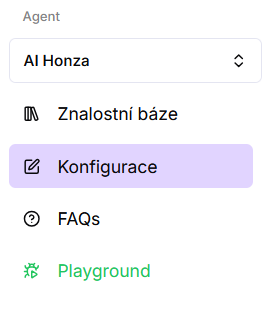
- In the right column, find the Script section and copy the entire code.
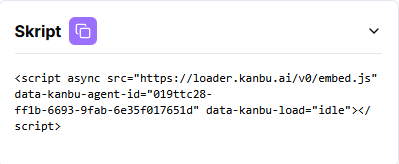
You then use the same script in one of the methods below. The generated code includes data-kanbu-load="idle" — change when the chatbot downloads in Widget loading.
2. Method 1 (recommended) — Google Tag Manager
Suitable if your website already uses GTM, you want to tie the chatbot to cookie consent, or display it only on selected pages.
- Go to tagmanager.google.com and open the relevant container.
- In the left menu, click Tags → New.
- Click Tag configuration → select Custom HTML → paste the copied script.
- Click Triggering → + → select trigger type Page view.
- Set trigger conditions as needed (see below) and save the trigger.
- Click Submit → Publish.
Recommendation: First deploy the chatbot on one specific page and test it before enabling it across the entire website. This reduces the risk of problems if data sources are not yet fully ready.
2.1 Trigger setup examples
The trigger determines on which pages the chatbot appears:
- All pages: Trigger type → Page view → no conditions
- Only a specific section: Condition → Page URL → contains →
/podpora/ - Only product pages: Condition → Page Path → starts with →
/produkty/ - Only a dedicated page (e.g. full-page chat): Condition → Page Path → contains →
/chatbot(or equals the exact path)
Two agents on one site: create two tags (each with a different agent’s script) and give each its own trigger so both do not fire on the same URL. Typical setup: widget on regular pages, full-page agent only on the dedicated path — see Chatbot placement. Use Embed domains as a safeguard, not as the only way to separate them.
3. Method 2 — Direct embedding in website code
Use if you do not use GTM and have access to the website HTML template or a CMS that allows embedding custom code.
- Insert the script in the website footer, just before the closing
</body>tag, on pages where the chatbot should appear. Most often it is inserted into a shared website template so it appears on all pages at once. - Save changes and reload the page — the chatbot should appear.
The chatbot appears on all pages where the script is present. If you want it only on selected pages, use Method 1 via Google Tag Manager.
4. Most common deployment errors
The chatbot does not appear after deployment or behaves unexpectedly? Go through the points below — most problems have a simple solution.
5. What to check
-
The script is embedded in full and correctly.
Verify that you copied the entire code from the Configuration → Script section and that it was not damaged or shortened during embedding.
-
The page is not loading from cache.
Perform a hard refresh:
Ctrl+Shift+Ron Windows orCmd+Shift+Ron Mac. -
An ad blocker or security extension is not blocking the script.
Try opening the page in a browser incognito window without extensions.
-
When deploying via GTM: the tag is published and the trigger is set correctly.
Verify that after creating the tag you clicked Submit → Publish. Use Preview in GTM to verify that the tag fires on the given page.
-
When deploying via GTM: the trigger fires on the correct pages.
Check trigger conditions — especially Page URL or Page Path values.
-
A whitelist is not blocking the current page.
Under Configuration → Embed domains, check whether Whitelist only is on. If it is, the current domain or URL must be listed — see Embed domains.
Frequently asked questions
-
Which method should I choose?
Unless you have a specific reason otherwise, choose Google Tag Manager — it gives you control over display and cookie consent integration without modifying code. Use direct code embedding when you do not have GTM or access to it.
-
Where do I find the script?
In the left menu click Configuration → right column → Script section.
-
How do I verify that the GTM tag works correctly?
In GTM click Preview — a debug mode opens where you can see which tags fired on the given page.
-
Do I need to embed the script on every page separately?
When embedding in code, it depends on the website platform. If your CMS or templating system allows a shared footer (before
</body>), embedding the script once is enough and it will apply to all pages. -
I embedded the script correctly, but the chatbot still does not appear. What next?
Open the browser developer console (F12 → Console tab) and check whether an error message appears. If the problem persists, contact support at support@kanbu.ai.
-
The chatbot appears but answers incorrectly or does not answer at all.
That is not a deployment problem but a data source or agent configuration issue — see Adding sources and Answer customization.
-
I do not want to deploy the chatbot on the website — can I give customers just a link?
Yes. Use the Playground link (Share on Configuration). No website script is required. Choose display mode by purpose: Widget for a website-like preview, Full page for a full-screen chat experience (QR / landing / dedicated help) — see Chatbot placement.
-
How do I test configuration changes without affecting the live bot on the website?
Playground uses the same settings as the deployed agent. Create a second (test) agent with shared sources — steps in Agent management.