
Updating sources
When data in Kanbu gets stale, your chatbot starts answering based on outdated information. This page describes how to keep data fresh and how to manage existing sources.
1. Automatic updates
Kanbu can periodically check whether your source content has changed and automatically download updates. That eliminates manual oversight of every document.
Requires a paid plan.
1.1 How to do it
Auto-update can be configured at three levels:
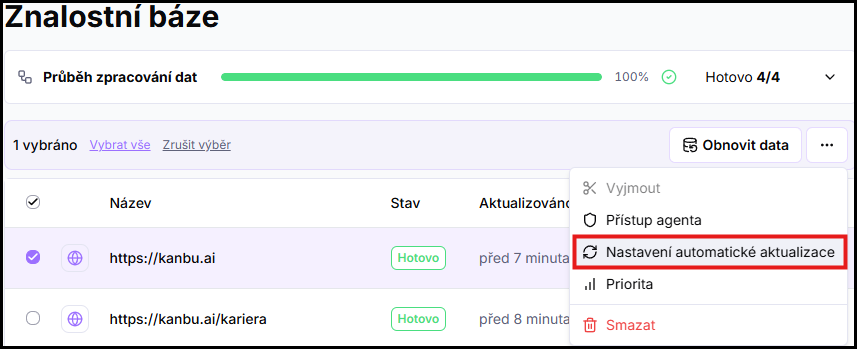
- For a specific source — in the knowledge base, select the source in the list and in the three-dot menu above the list choose Set automatic updates.
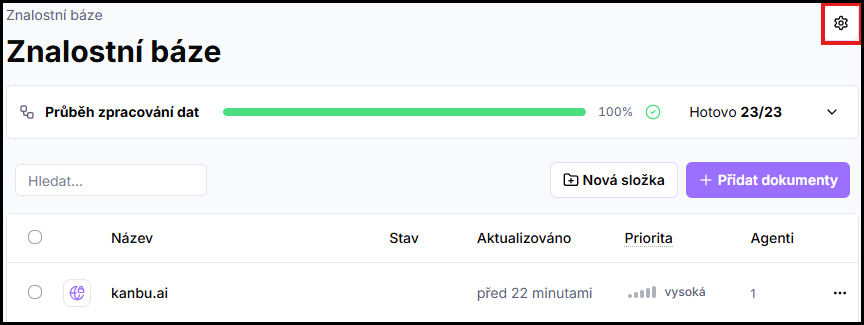
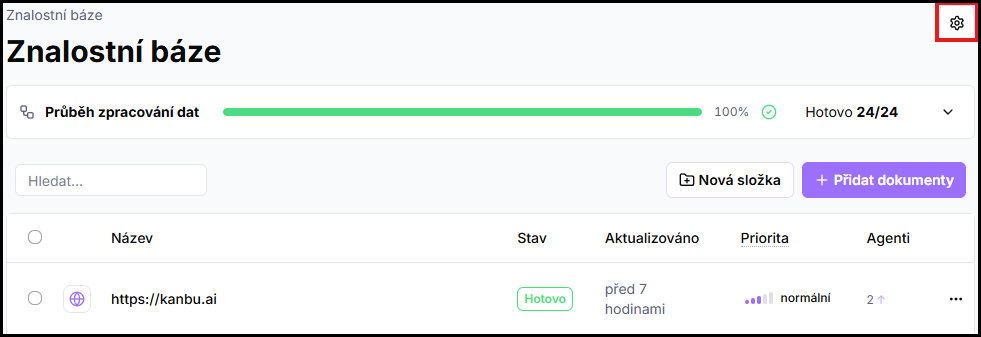
- For the entire organization — default values for all newly added data and all data with update frequency set to Inherit. In the organization-level Knowledge base menu, click the Organization settings gear icon.
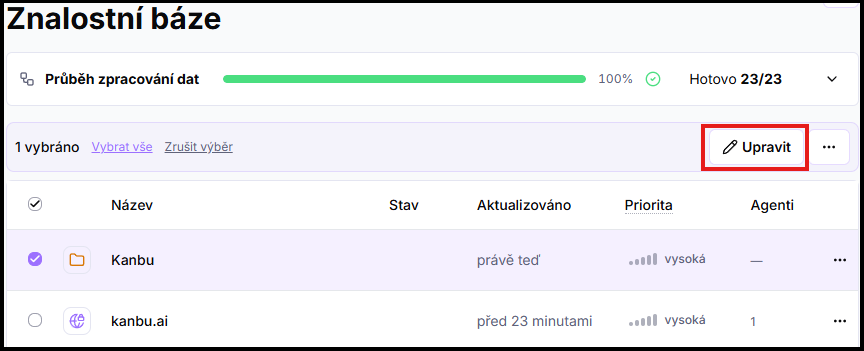
- For a folder — if you organize data into folders, you can share settings across an entire folder. Select the folder or enter it and click Edit above the list.
Settings at a lower level override settings from a higher level. If you leave Inherit on a source, the parent folder's value is used; if that also inherits, the organization default is used.
1.2 What gets configured
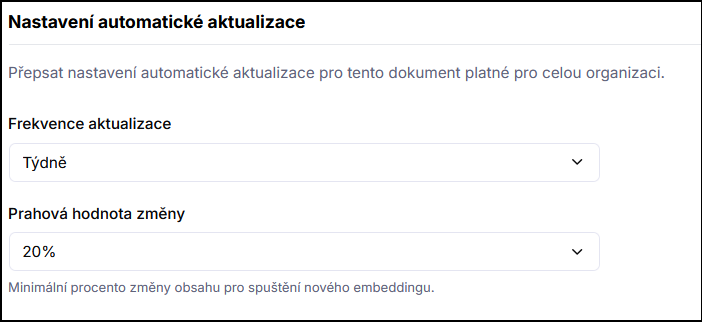
Check frequency
How often Kanbu checks whether content has changed. Options: Daily, Weekly, Biweekly, Monthly, Never, or Inherit (take settings from the parent level).
Change threshold
What percentage of content must change for Kanbu to trigger a refresh. Options: 1%, 5%, 10%, 20%. A lower value catches minor edits (suitable for pricing, legal pages); a higher value ignores noise (suitable for blogs and frequently edited sections).
1.3 What happens after an update
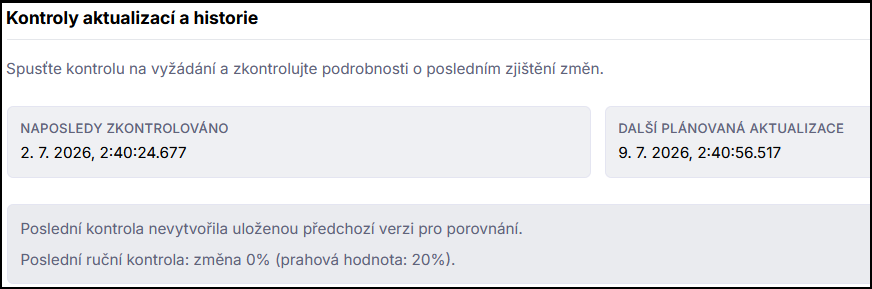
After the configured interval, Kanbu checks the source content and compares it with the stored version. If content changed by more than the configured threshold, it downloads current data and overwrites the knowledge base. You'll see the date and time of the last check and last successful update for each source in the list. If an update fails (for example due to an unavailable URL), the source is marked with an error status — see Data quality check.
2. Website monitoring
Website monitoring goes beyond regular auto-update — Kanbu periodically crawls the website, reports new subpages, and alerts you to those that disappeared.
Requires a paid plan.
Configuration details in Website monitoring.
3. Manual update
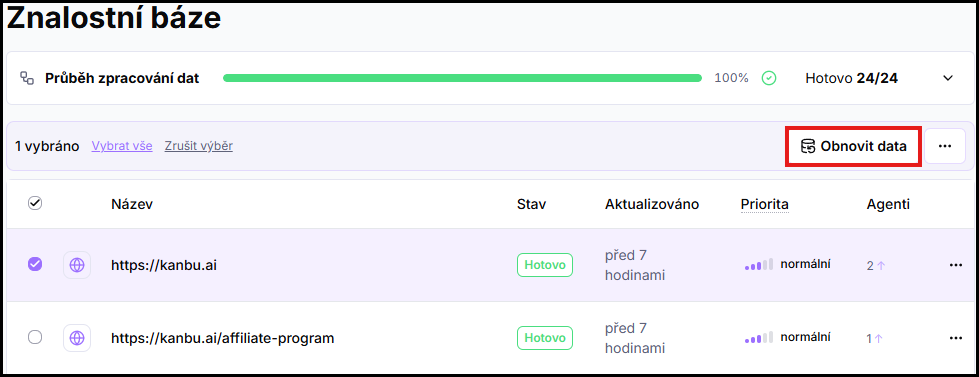
If you want to update a source immediately (for example after an important website publication) and don't want to wait for the next scheduled cycle, select the source (or multiple sources) in the list and click Refresh data above the list. Kanbu will crawl the website again and download current data.
4. Organizing sources
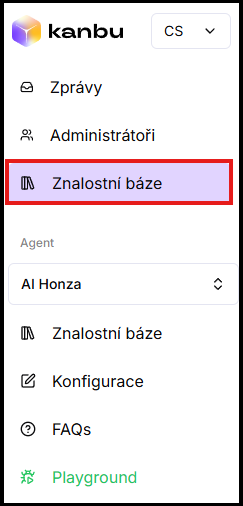
You can organize sources into folders for better overview. A folder groups related documents and can share common settings — update frequency and agent access are genuinely inherited by sources inside it (unless you set a source's own value). Priority works differently: a folder's priority only applies as the default for sources newly added to it — changing it later doesn't retroactively change the priority of sources already in the folder. Folder creation is only available in the organization-level Knowledge base menu, distinct from the agent Knowledge base. You'll find this menu in the top navigation panel.
4.1 When to use folders
Folders are useful when you have many sources and need different behavior for them — for example daily updates for pricing and product pages, but only monthly for blog posts. Instead of setting frequency for each source individually, set it once on the folder and all sources inside inherit it. Folders also help with agent access management — folder access applies to all sources within it.
Creating a folder
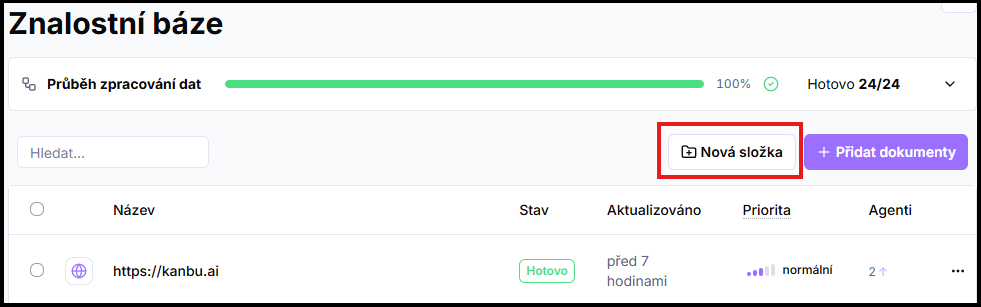
In the Knowledge base menu, click +New folder, name it, and save. You can also set properties such as update frequency, agent access, or priority right away (all can be configured later too).
Moving a source
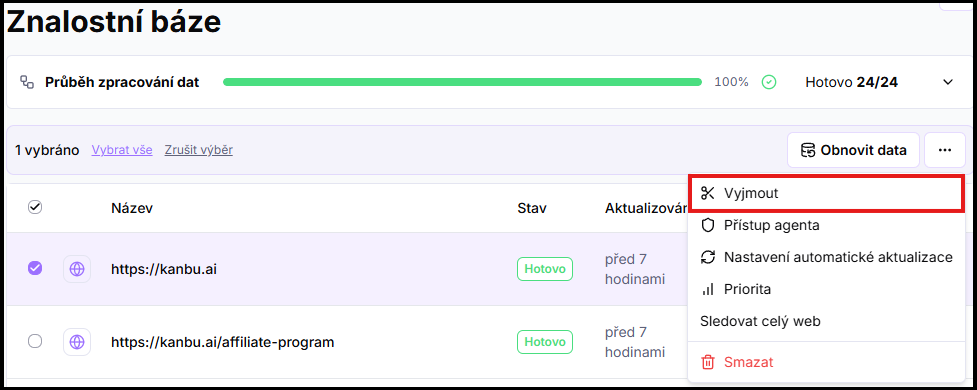
Select the source in the list and in the three-dot menu above the list choose Cut. Go to the target folder and click Paste here.
Bulk move
Using Ctrl or Shift, select multiple sources at once and follow the same Cut / Paste here process. More details in Bulk actions.
5. Deleting sources
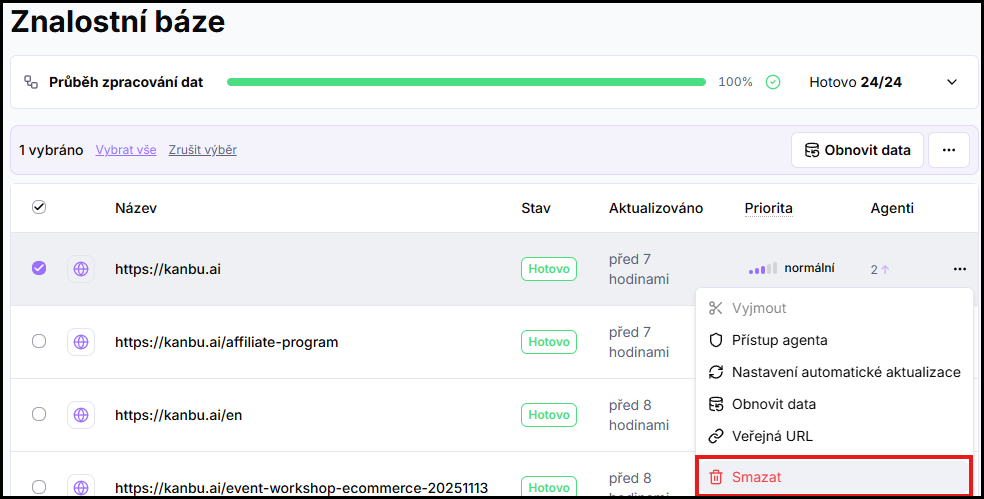
Select the source in the list and in the three-dot menu above the list choose Delete. Deletion applies across the entire organization — if multiple agents had access to the source, they all lose it at once.
6. Default automatic update settings
In the organization-level Knowledge base menu, click the Organization settings gear icon.
Default auto-update
Update frequency applied to all data sources with automatic updates set to Inherit (default settings).
7. Bulk edits
For most operations (deleting, moving, changing agent access, changing auto-update) you can select multiple sources at once using Ctrl / Shift or the Select all action. More details in Bulk actions.
Frequently asked questions
-
Can I turn off auto-update for only some sources?
Yes. At the folder or specific source level, set frequency to Never. They'll be excluded from auto-update even if the organization has a default cycle configured.
-
If I change the frequency — when does the first check run?
The first check is scheduled according to the new cycle from the moment of the change. If you want to update immediately, use Refresh data.
Related
- Source prioritization — source weight for search
- Adding sources — how to add a new source and configure auto-update when adding
- Website monitoring — periodic website crawling and page statuses
- Shared data sources across chatbots — agent access to sources
- Bulk actions — bulk operations on sources