
Get started
This page walks you from creating an account to deploying the chatbot on your website. Each step links to a more detailed guide if you want more details. Most of the journey takes just a few minutes — the chatbot is ready right after registration with default settings.
1. Create an account
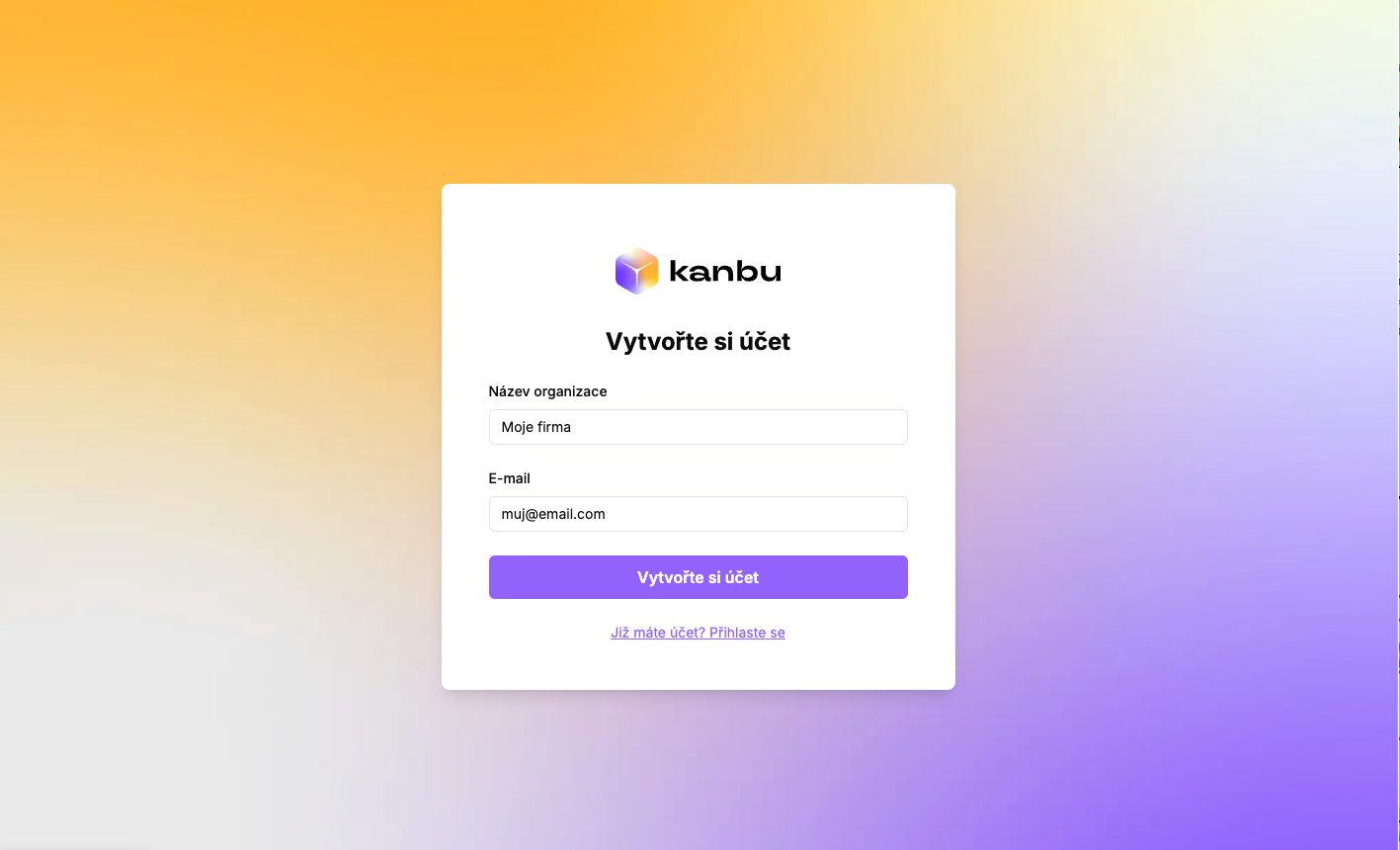
You can create an account yourself at app.kanbu.ai/register:
- Fill in your organization name and email and submit the form. Your organization will be created and an invitation will be sent to the email address you provided.
- In the email, click the link, set your password, and accept the terms.
- Return to the login screen — sign in with your email and new password.
After logging in, you'll already have an organization set up with your first agent in default settings. On first login, the app opens directly on the Knowledge base screen — so you can immediately proceed to adding your first data.
2. Add your first data
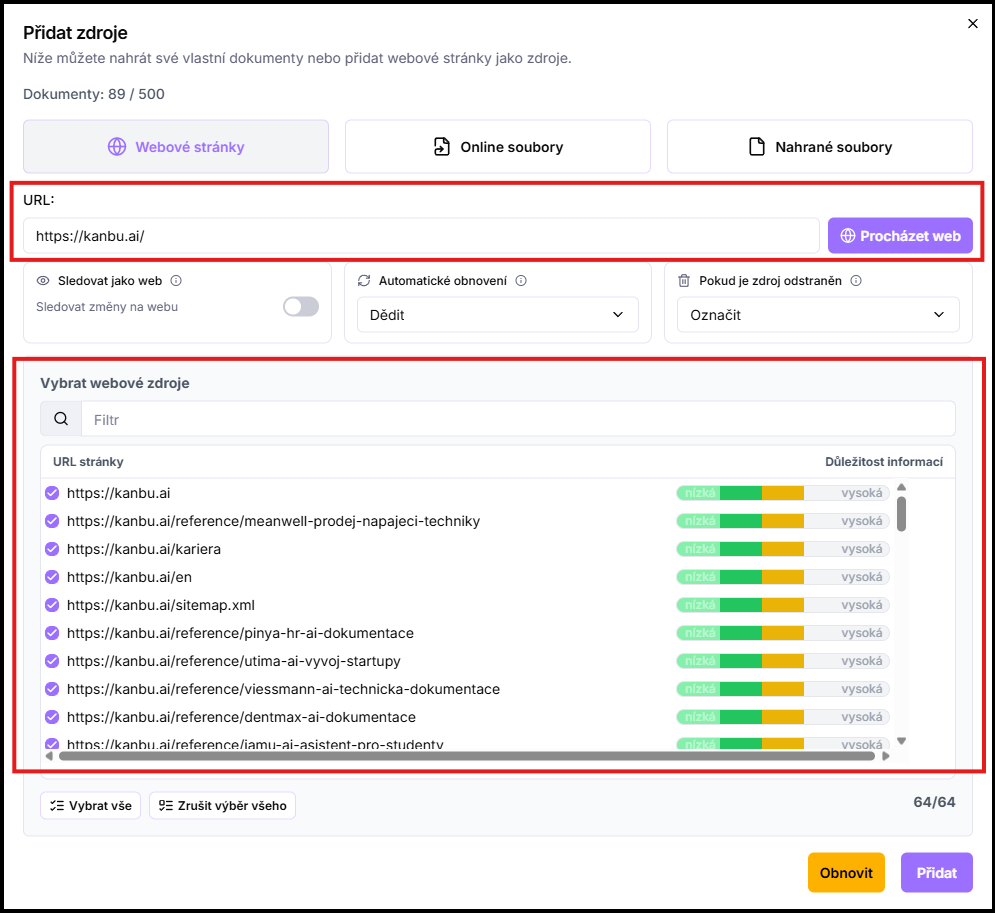
For the chatbot to answer based on your company, give it data — website, documents, or FAQ. Click the Add documents button, enter your website URL, and click Browse website. Then click Add. Keep in mind that this action consumes credits. For organizations without a paid plan, we recommend keeping the number of web pages added below 150.
Kanbu will process the source into the knowledge base. You can add more data anytime later in the Knowledge base menu.
For a detailed walkthrough, see Adding sources.
3. Test it
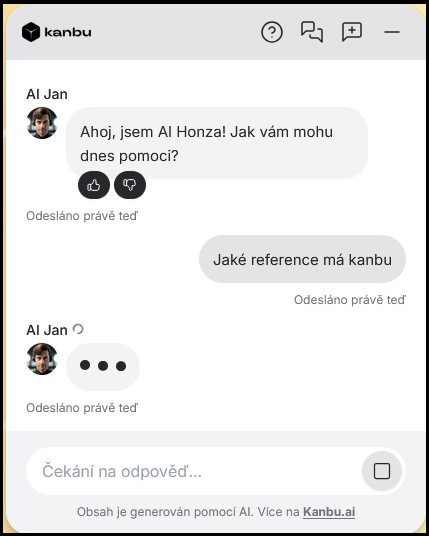
Before releasing the chatbot on your website, try it in the Playground — an environment where it responds exactly as it will when deployed. Ask a few typical questions and verify that it answers correctly.
More information in Playground. Want feedback from colleagues? Just send them the Playground URL — they don't need to log in anywhere — see Access and roles.
4. Deploy on your website
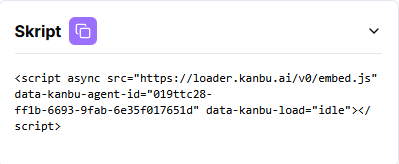
Finally, deploy the chatbot. The fastest way is to embed a short script that Kanbu generates — the chatbot will appear to visitors immediately.
Details in the Deploy on website section.
What's next?
That's it — your chatbot is live. From here you can:
- Fine-tune responses — tone, style, and agent behavior. See Customizing responses.
- Customize appearance — colors, texts, bubble placement. See Chatbot appearance.
- Create more agents — for example for another website or language. See Agent management.
- Track results — reports and conversation history. See Testing and results.