
Operator handoff
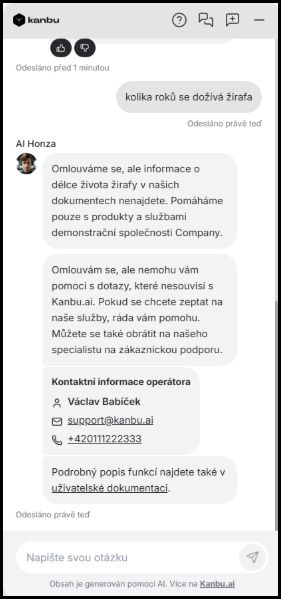
If the chatbot does not know the answer to a user's query, it can display a predefined contact — an operator — instead of an empty response. It reacts the same way when the user asks to be connected to support. You can assign custom text to an operator (for example, a link to a web form), email, and phone. With multiple operators, the chatbot selects the one whose focus best matches the topic of the query.
During business hours, the user can also confirm a live connection (with Yes, connect me) — the conversation then switches to a human operator in Live chat. Outside business hours the connect button is hidden: the user still sees the contact card, and the agent explains in its message that nobody is available right now and when the team is usually around.
1. How to set up an operator
- Open Administrators — in the left menu of the application, click Administrators.
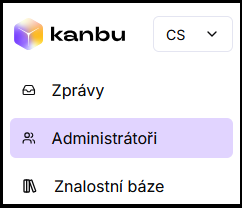
- Select an administrator — click the person who should be the contact.

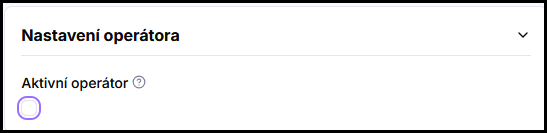
- Enable the operator feature — check the Active operator box.
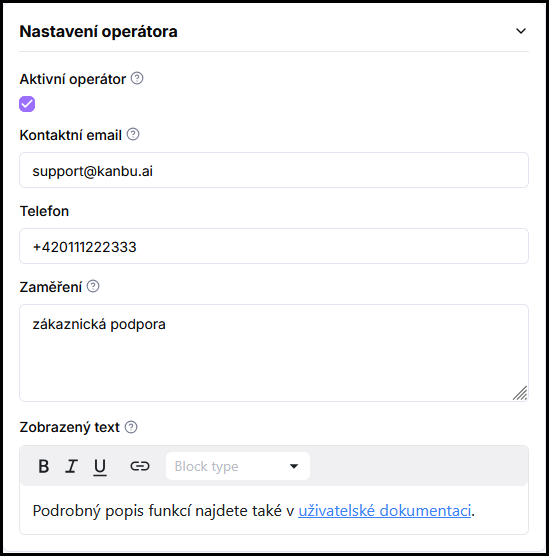
- Optionally fill in details — email, phone, focus, and displayed text.
- Save changes — click Save.
- Verify in Playground — try a query for which the chatbot returns the operator's contact.
2. What is configured for an operator
Active operator
Marks the administrator as a contact person in the chatbot. Without activation, the administrator is not shown to the user.
Contact email
Email visible to the user. If left empty, the email the administrator is registered with is used.
Phone
Phone number visible to the user. If left empty, the phone is not displayed.
Focus
A short description of the operator's specialization (for example, support, sales, HR). With multiple operators, the chatbot uses this to determine which operator best matches the topic of the query and displays their contact.
Displayed text
Text shown together with contact details. You can add links to web forms or supplementary instructions for the user here.
3. Live connection, business hours, and email
Showing contact details (email, phone) is one part. Live connection (the Yes, connect me button) is offered only when someone is available according to the organization’s business hours:
- During business hours — under the contact card the user sees Yes, connect me. After they click:
- AI turns off and the chat header shows Waiting for operator with a timer and Typically responds within 2 minutes.
- Kanbu sends an email to active operators (or to administrators if none are set) with a conversation preview and a link to the thread in Messages.
- After the first message from an administrator, the text changes to Talking to human operator.
- Outside business hours — the connect button is hidden. The user still sees the contact card; the agent apologizes in its reply and mentions when someone is usually available. Email and phone remain as ways to reach you.
If you do not configure business hours (or every day is closed), the connect button is hidden — the user still gets the contact card and the agent offers email or phone in its message.
Set business hours and notification opt-outs in Organization management. The full admin takeover flow is in Live chat.
Frequently asked questions
-
What if I have no operator configured?
The chatbot will not offer any contact. Live chat still works — any administrator can take over a conversation in Messages. In that case the handoff email goes to administrators. If you want to handle fallback differently (for example, direct the user to a specific email directly in the response), define the behavior in Personalization.
-
How do I control when exactly the agent offers a contact?
By default, the contact is shown when the AI does not know the answer or the user requests it. If you want specific rules (when yes, when no), enter them in Personalization.
-
Why is Yes, connect me missing outside business hours?
Live connection from chat is intentionally limited to business hours so the user is not left waiting for someone who is not available. Contact details still show; the agent explains the situation. An administrator can still take over the thread from Messages — see Live chat.
-
Can I have multiple operators with different focus areas?
Yes. Activate multiple administrators as operators and give each a different description in the Focus field. The chatbot will then select based on the best match with the user's query topic. The live handoff email goes to all active operators.
-
Where do I turn off handoff emails?
In organization settings, turn on Disable all inbox notifications — see Organization management and Live chat.