
Text and welcome message
You edit chatbot text — welcome message, bubble title, and bubble description — in the Personalization section under Configuration. These are the first things the user sees before they send their first message.
1. How to do it
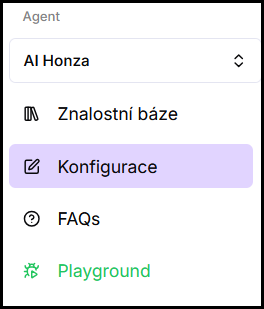
- In the left menu under the selected agent, click Configuration.
- Go to the Personalization section.
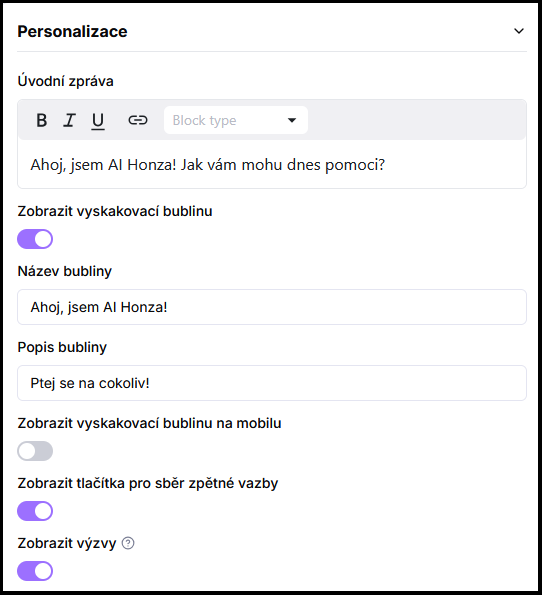
- Edit the desired fields (see below).
- Click Save.
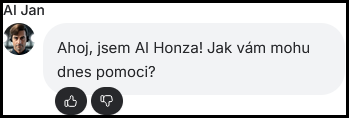
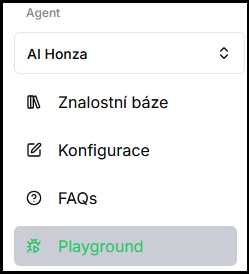
- Verify in Playground — try the behavior right away in the test chat.
2. What gets configured
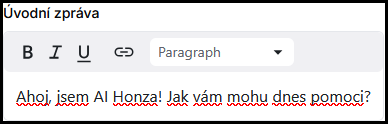
Welcome message
Text that the chatbot automatically displays to the user at the start of every conversation. Set it so the user immediately knows what the chatbot can help with.
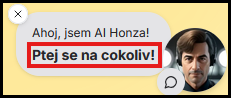
Bubble title
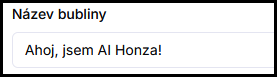
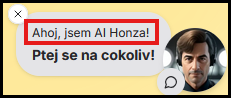
The first line of text in the popup bubble next to the chat icon. Usually the chatbot name or a short prompt.
Bubble description
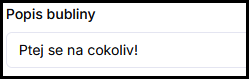
The second line of text in the popup bubble. Suitable for a short, specific prompt, for example "Ask anything!"
Frequently asked questions
-
Does the welcome message appear in every conversation?
Yes, the welcome message always appears at the start of a new conversation.
-
Where do I configure whether the bubble is shown at all?
You configure bubble visibility and its behavior on mobile in Bubble, feedback and prompts.