
Communication style
Behavior settings determine how the chatbot responds — what grammatical gender it uses, how formal it sounds, and how detailed its answers are. Everything is configured in the Configuration menu.
1. How to do it
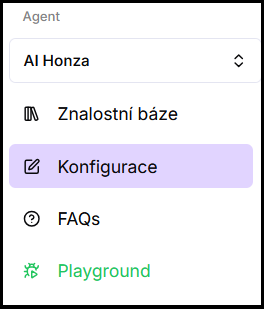
- Open Configuration — in the left menu of the application, click Configuration.
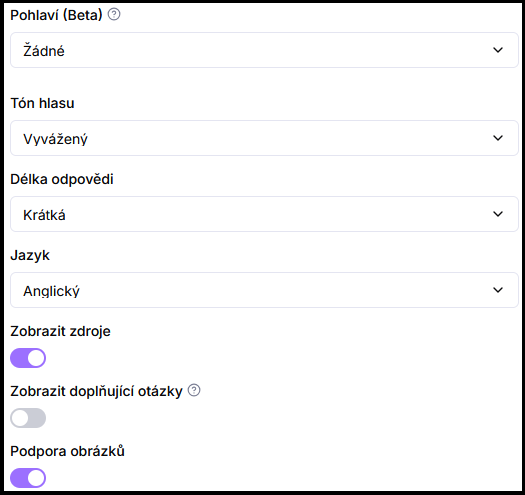
- Adjust behavior settings — go through the basic details and set values as needed.
- Save changes — click Save for the settings to take effect.
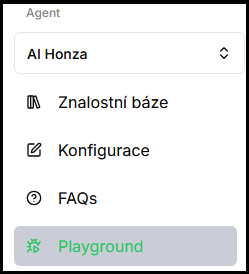
- Verify in Playground — try the behavior right away in the test chat.
2. Settings that affect communication style
Gender
Determines the grammatical gender in which the agent formulates responses.
Tone
Sets how formal or friendly the agent sounds.
Response length
Controls how detailed and comprehensive the agent's answers are.
Show follow-up questions
When enabled, the agent offers a follow-up question below the answer that the user can ask with one click.
Image support
Allows the agent to display images in responses if they are available in knowledge sources. Without images in sources, this setting has no effect on responses.
Show sources
Displays a link below the answer to the web page or document from which the agent drew information.
Frequently asked questions
-
Do changes take effect immediately?
Changes are activated after clicking Save, and you can try them right away in Playground.
-
Can I change the settings later?
Yes, at any time — open Configuration the same way, change the values, and save.
-
Where do I set language or personalization?
They have their own pages — see Language and multilingual support and Personalization.