
Bubbles and prompts
These settings determine what appears around the chatbot before the user starts a conversation — the popup bubble with text, automatic chat open, response rating buttons, and engagement prompts.
1. How to do it
- In the left menu under the selected agent, click Configuration.
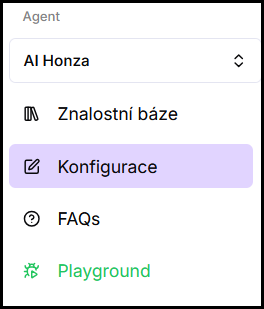
- Go to the Personalization section.
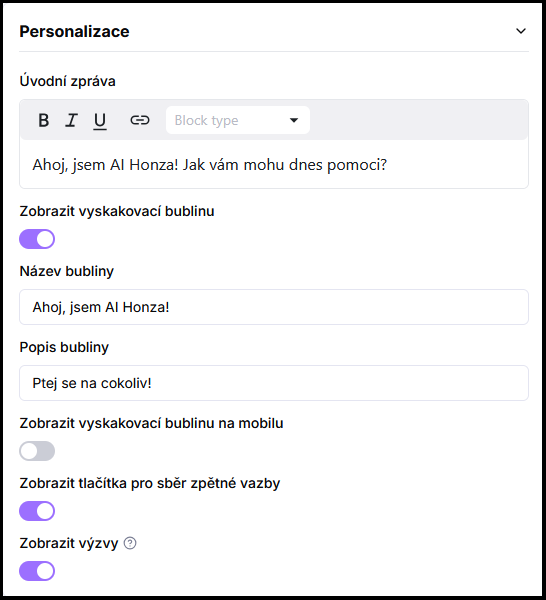
- Turn the desired toggles on or off.
- Click Save.
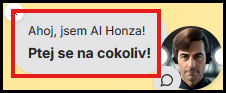
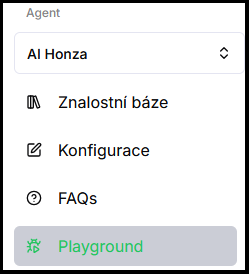
- Verify in Playground — try the behavior right away in the test chat.
2. What gets configured
Show popup bubble
A bubble with text (title and description) appears next to the chat icon, prompting the user to open the chat.
Show popup bubble on mobile
Determines whether the bubble is also shown on mobile devices. On mobile, this option is off by default because the bubble can overlap page content on small screens.
Open chat automatically
The chat expands as soon as the page loads — the visitor does not need to click the icon. Useful for dedicated landing pages or QR links where the chatbot should be available immediately. Works with both Widget and Full page — see Chatbot placement.
Show feedback collection buttons
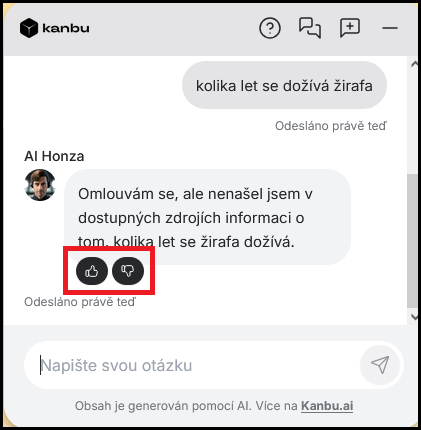
Thumbs up and thumbs down icons appear below each agent response. The user can also click an icon and write feedback in words. More about the purpose of feedback in Messages and history.
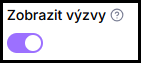
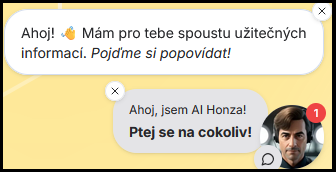
Show prompts
Above the minimized chat, a message (callout) appears after a while to catch the user's attention and inform them about the chatbot. Prompts are contextual — if the currently visited page is available in the agent's data source, a message tailored to that page's content is displayed.
Frequently asked questions
-
Where do I configure the bubble text?
You configure bubble text (title and description) in Text and welcome message.
-
Where can I find user feedback?
In the left menu, click Messages and open the history of a specific thread. Feedback is also included in the message export to XLSX.
-
I want the chat full page immediately — is Open chat automatically enough?
Automatic open keeps the selected display mode. For a full-page chat, also set Display mode → Full page under Placement. When the chatbot code downloads is
data-kanbu-loadon the embed script — the defaultidlewaits for the page to finish. For a landing page or QR link useimmediateorload, see Widget loading.