
Client billing and subscription
As a partner administrator, you can assign a client a paid plan, track their invoices and balance, and cancel their subscription if needed. This page describes the Billing page available for every client in your portfolio.
1. Opening a client's billing page
- In the Organizations list, find the client and open their edit page (click their row, or switch into the organization and open Settings).
- In the top right, click Plan & billing management.
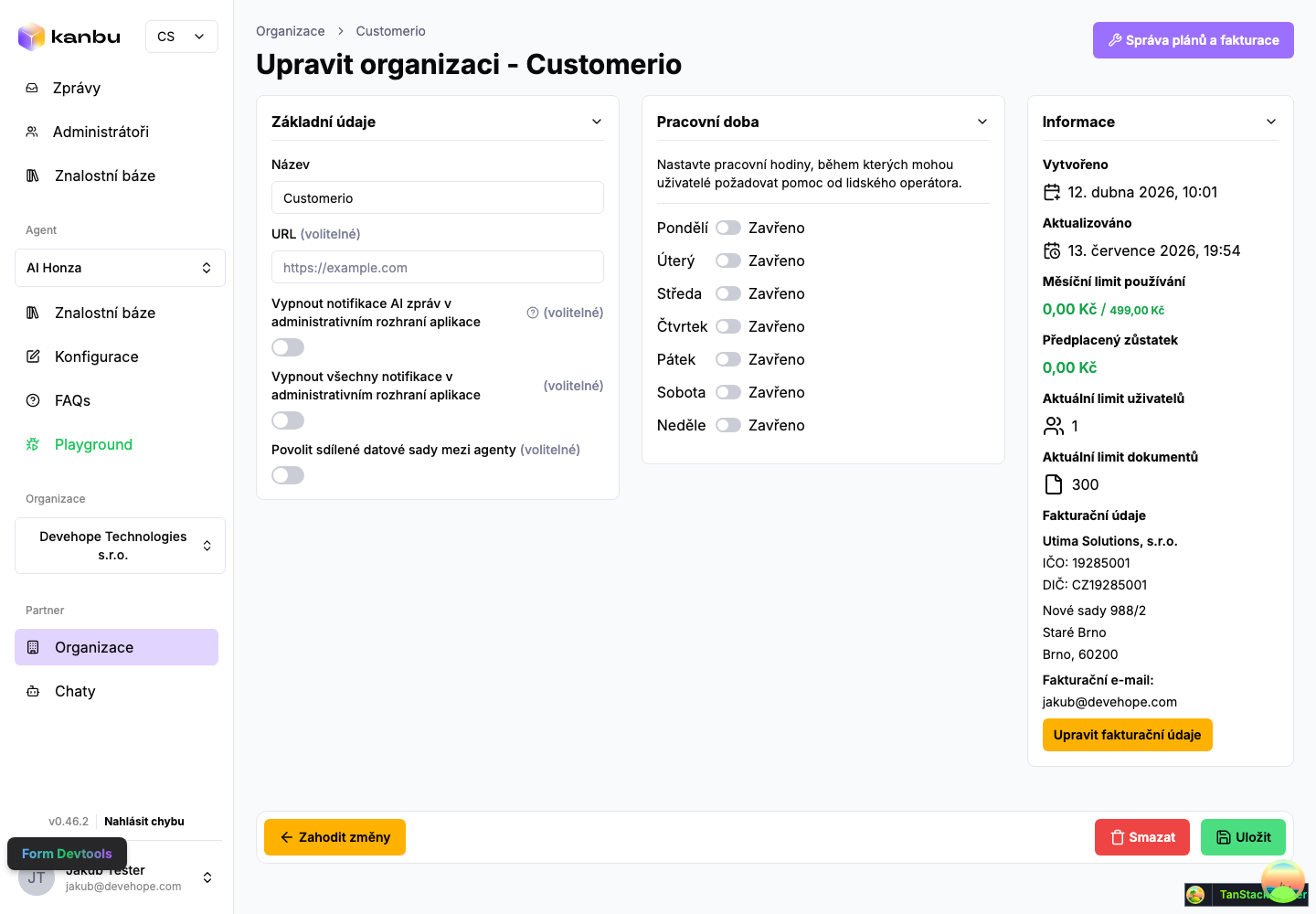
This opens the Billing — [client name] page with four sections: current subscription, balance and auto top-up, assign plan, and invoices.
2. Current subscription
The Current subscription card shows the client's plan (name, status, billing period), current period, next renewal date, payment method, and the subscription's line items (base plan and add-ons, each with its own period and price).
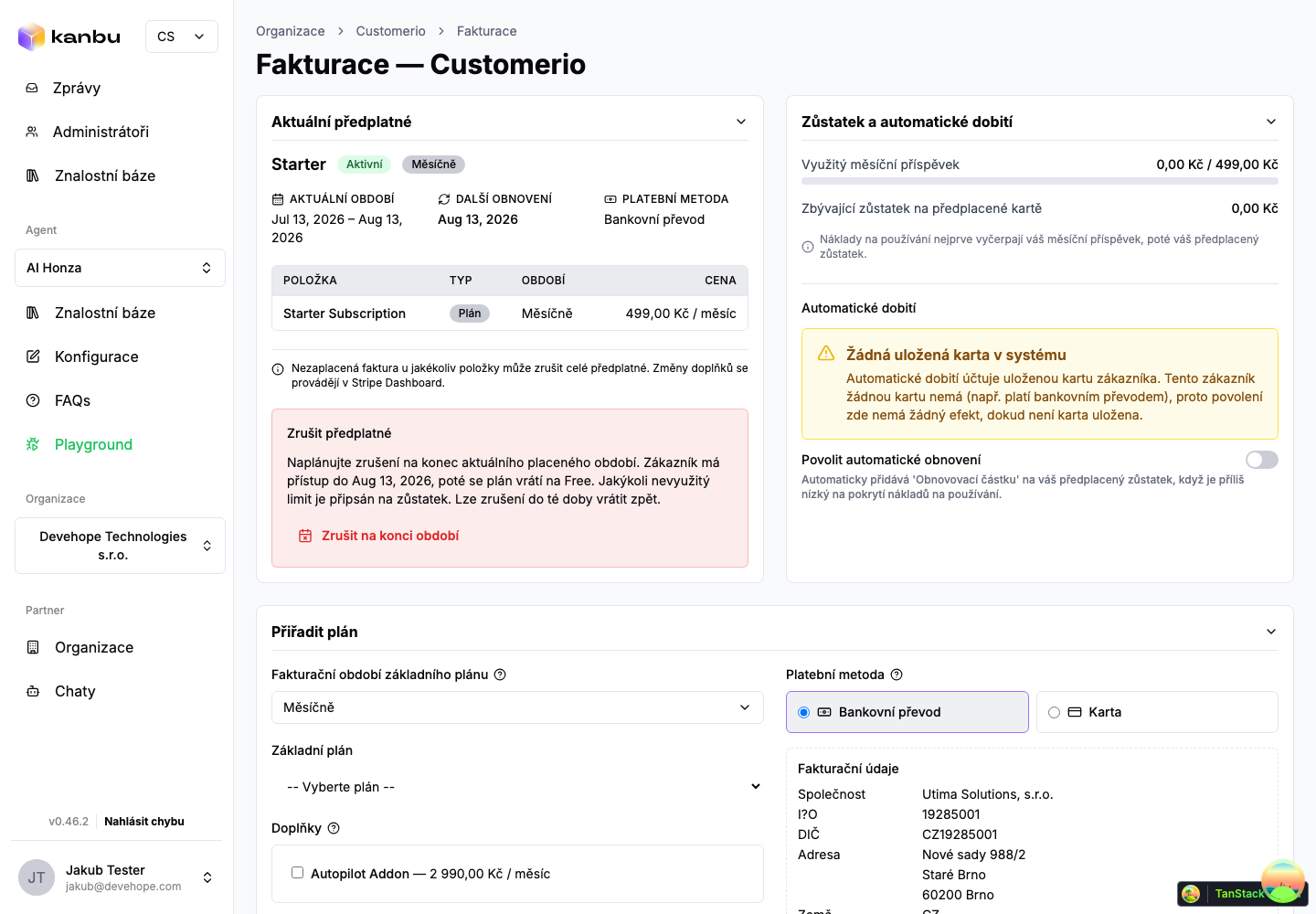
If the client has no active paid subscription, the card shows this as the Free plan.
3. Assigning or changing a plan
In the Assign plan card, you choose:
- the base plan's billing period (monthly, quarterly, half-yearly, yearly),
- the base plan from the catalog — without custom enterprise pricing, which only the Kanbu team assigns,
- optional add-ons,
- the payment method — bank transfer or card; this only records sales intent, since how renewals actually work depends on how the client pays the first invoice,
- the client's billing details are shown read-only; to edit them, click Manage company billing details — this opens a form with the company name, company ID, VAT number, address, and two email fields: Billing email (where the client's invoices and payment links go) and CC email for invoices (optional) — you can add the client's accountant here so they get a copy of every invoice issued. Field details are also in Billing details.
Once filled in, click Assign and activate. If the client already has an active subscription, the app asks whether you want to replace it.
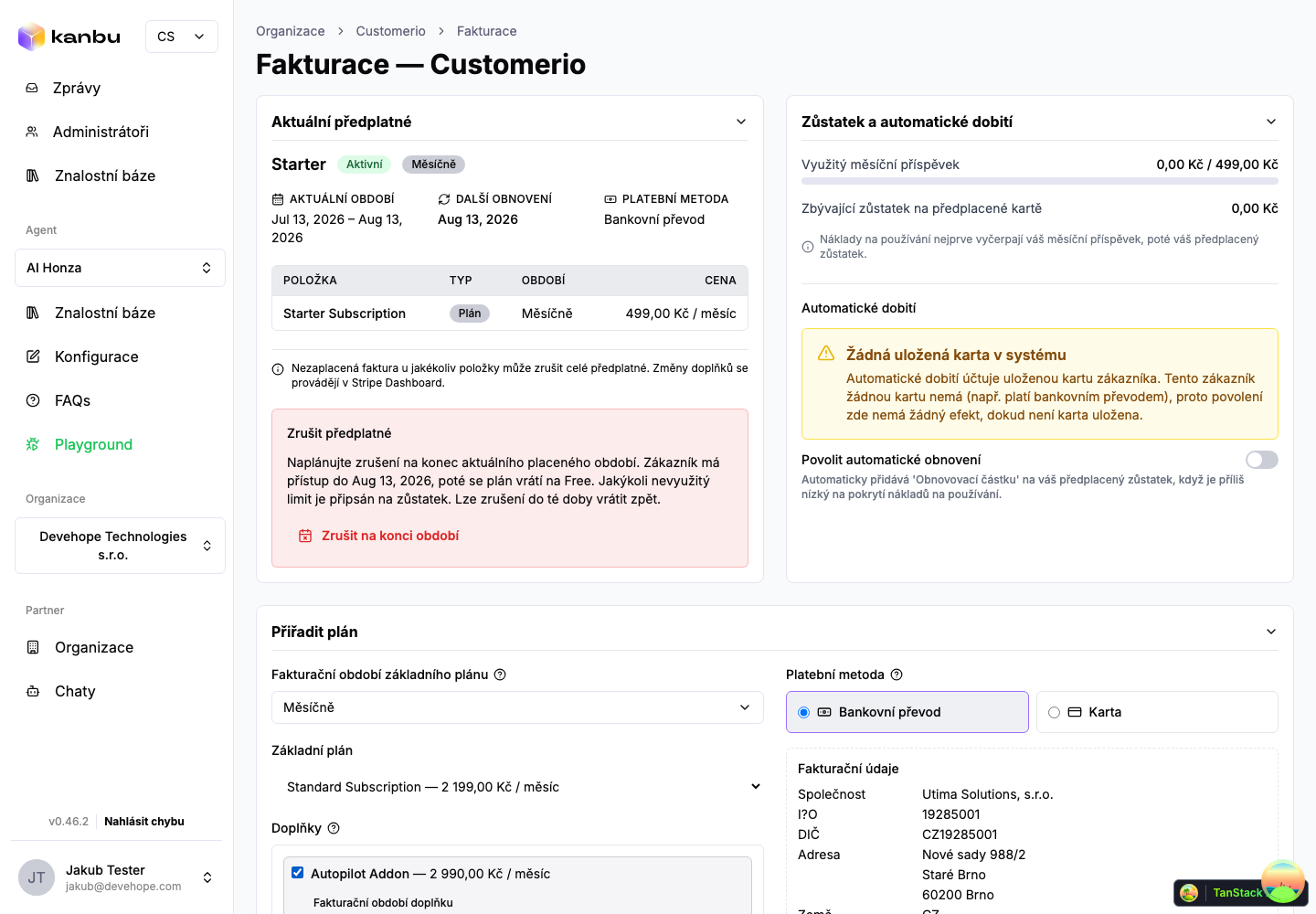
The plan activates immediately — the client doesn't have to wait for payment. A first invoice is generated with a link to a secure payment page, which you'll find in the invoices table below.
Bank transfer requires the client's billing info to include a company ID or VAT number — otherwise the assignment fails.
Partners can't replace an Enterprise subscription — that's reserved for the Kanbu team.
4. Invoices
The Invoices table shows the client's invoice history (number, amount, due date, status, reminder status). For an open invoice, click More actions and choose:
- Copy link — copies the link to the payment page so you can send it to the client.
- Refresh link — generates a fresh payment page if the original one expired (links are valid for roughly 44 days from issue).
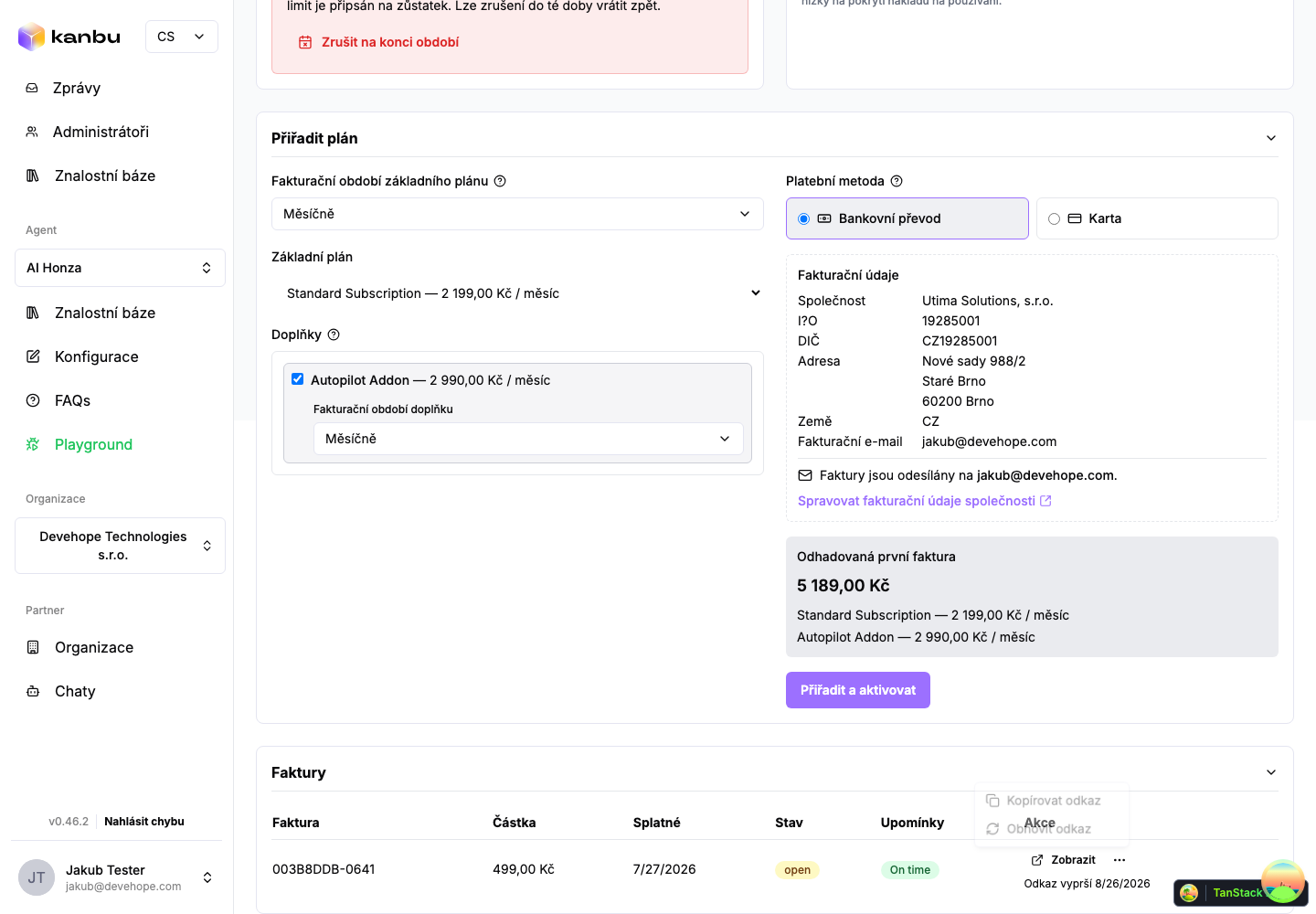
Voiding, reissuing, or manually marking an invoice as paid isn't available to partners — only the Kanbu team can do this.
5. Cancelling a subscription
In the current-subscription card, you'll find a Cancel subscription section with a Cancel at end of term button.
- The client keeps access until the end of the period they already paid for, then the organization moves to the Free plan.
- Any unused part of the monthly credit is credited to the balance.
- You can undo the cancellation at any point before the period ends.
Immediate (non-reversible) cancellation isn't available to partners — contact Kanbu support if you need it.
6. Balance and auto top-up
The Balance and auto top-up card shows how much of the client's monthly credit they've used and how much they have left on their prepaid card, and lets you turn on automatic top-up for them (tops up from a saved card once the balance drops below a set threshold).
If the client pays by bank transfer, they have no saved card, so automatic top-up won't apply to them — the card shows a warning about the missing card in this case.
Manually crediting balance (without charging a card) isn't available to partners — contact Kanbu support if you need it.
7. The client's own Payments page
This page is self-service — it's meant for the client, not for you as the partner. For actually managing a client (assigning a plan, invoices, cancelling a subscription, balance), use the Billing page described in sections 1–6 above. The Payments page is only useful for two things: checking exactly what the client sees (e.g. while troubleshooting their question), or talking them through it on a call.
To open the client's Payments page:
- Switch into the client organization — just opening it by clicking its row isn't enough; this page needs a proper switch.
- In the bottom left corner, click your name and email and select Payments.
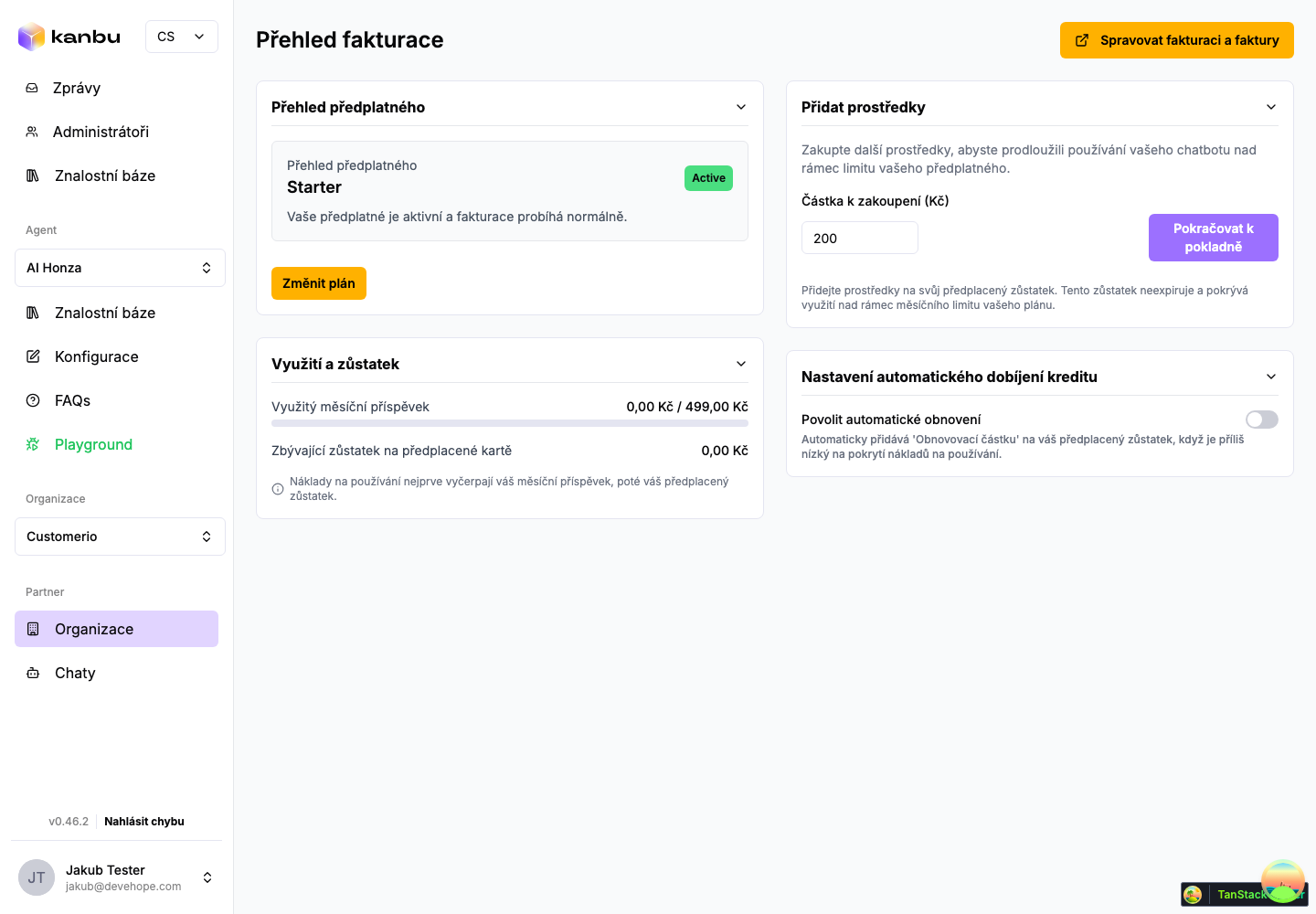
Here the client sees their subscription overview, can buy extra balance, turn on automatic credit top-up, and use Manage billing and invoices to open their own Stripe portal (cards, invoice history, cancellation) — the same button works for you too, once you're properly switched into the organization.
Frequently asked questions
-
Why don't I see Enterprise in the plan list?
Enterprise plans are negotiated individually and only assigned by the Kanbu team.
-
The client wants to cancel immediately, not at the end of the term. Is that possible?
No, only the Kanbu team can cancel immediately — write to support@kanbu.ai.
-
I made a mistake on an invoice (wrong company ID, tax date...). What now?
Only the Kanbu team can correct an invoice (void and reissue) — write to support@kanbu.ai with the details.
-
I clicked Manage billing and invoices on the client's Payments page and got an error.
You likely only opened the organization by clicking its row without switching into it. That button on the client's Payments page only works once you've properly switched into the client organization.
Related
- Managing client organizations — client portfolio and switching
- Choosing a subscription — plan overview
- Billing details — billing-detail fields, including the email settings
- Topping up credit — how balance and auto top-up work