
Colors and theme
You configure chatbot colors in the Theme configuration section under Configuration. You can choose a preset style or set custom colors to match your brand.
1. How to do it
- In the left menu under the selected agent, click Configuration.
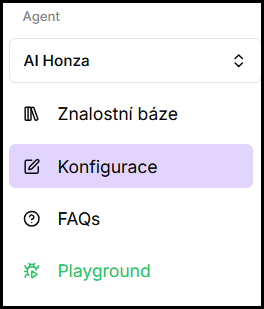
- Go to the Theme configuration section.
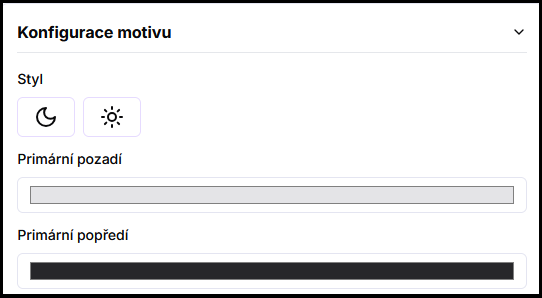
- Choose a style or set custom colors.
- Click Save.
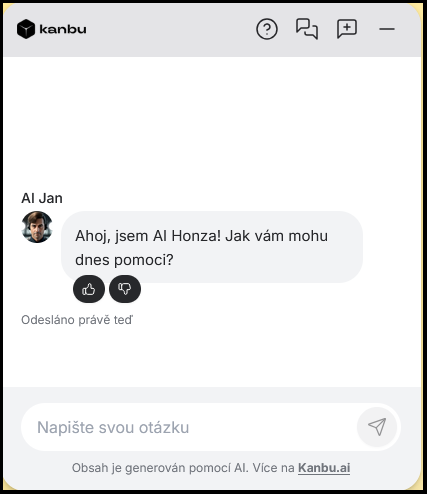
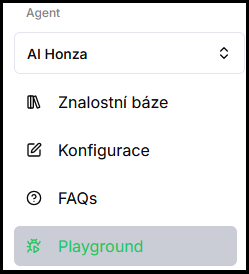
- Verify in Playground — try the behavior right away in the test chat.
2. What gets configured
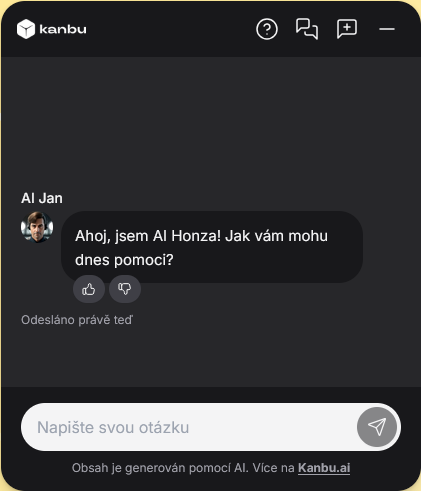
Style
Preset themes — Dark or Light. The style affects colors that cannot be changed manually, such as the conversation area background or the agent text bubble color. A good starting point before manual fine-tuning.
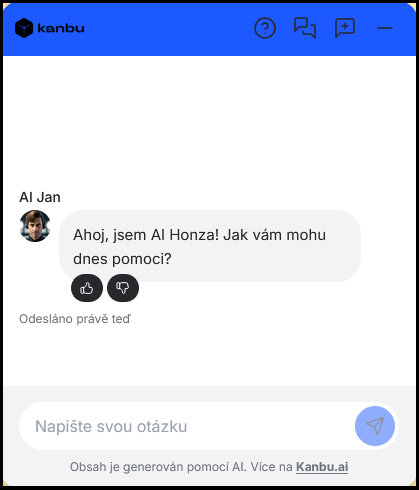
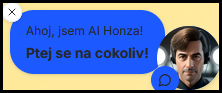
Primary background
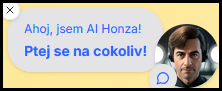
Color of the popup bubble next to the chat icon, the top bar of the open chat, and the user text bubble. Shown in blue:
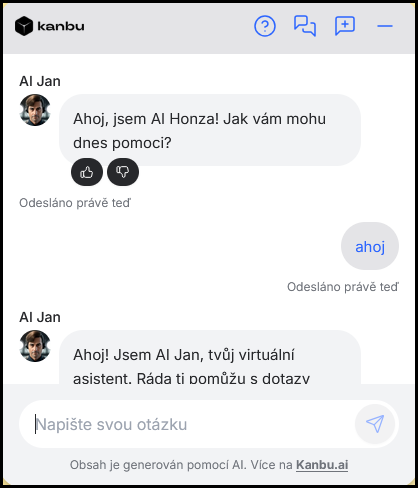
Primary foreground
Color of text and icons in the chat. Shown in blue:
Frequently asked questions
-
How do I enter an exact brand color?
Click the color field — a color picker opens where you can enter RGB values.
-
Where do I configure the logo and avatar?
Image settings are right below in the same Theme configuration section — see Images and logo.