
Images and logo
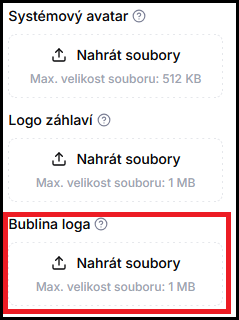
In the Theme configuration section, you can upload three images that define the chatbot's visual identity — the agent avatar, header logo, and chatbot icon.
1. How to do it
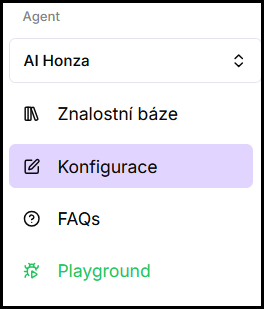
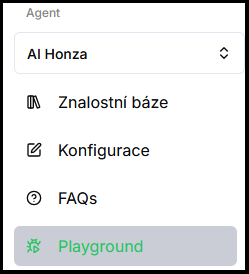
- In the left menu under the selected agent, click Configuration.
- Go to the Theme configuration section.
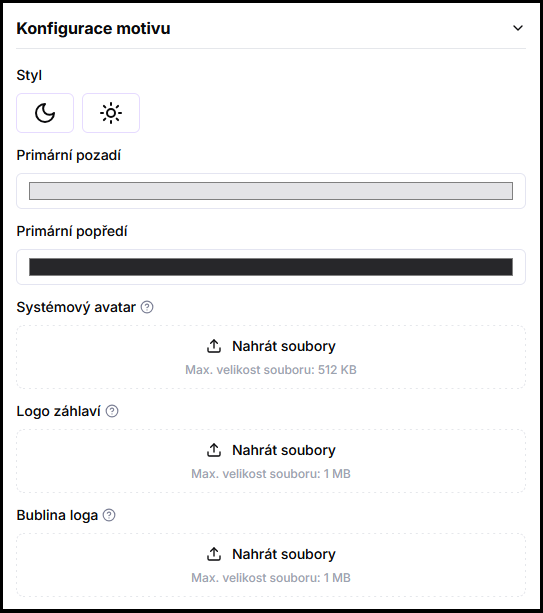
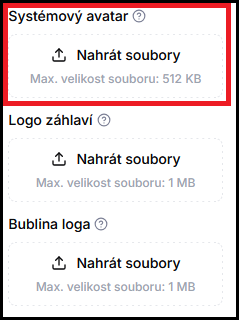
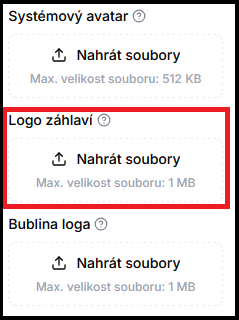
- For the desired field, click Upload files and select an image. The maximum file size depends on the field — 512 KB for the system avatar, 1 MB for the header logo and logo bubble.
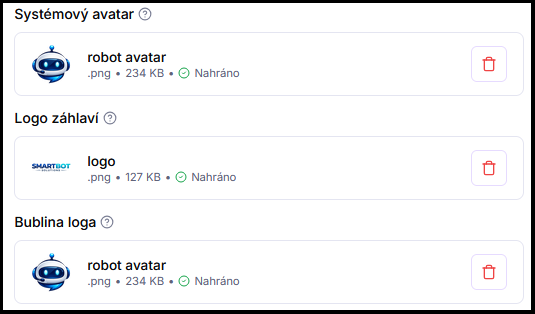
- Click Save.
- Verify in Playground — try the behavior right away in the test chat.
2. What gets configured
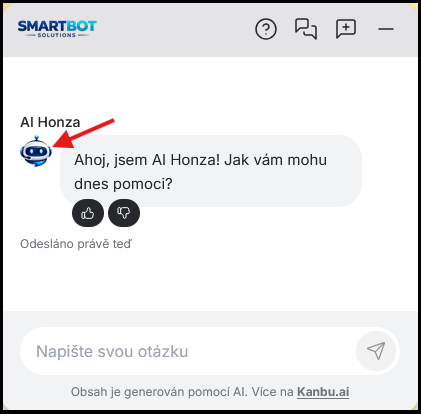
System avatar
The agent's profile image displayed next to each of its responses in the chat. Displayed as a circular crop.
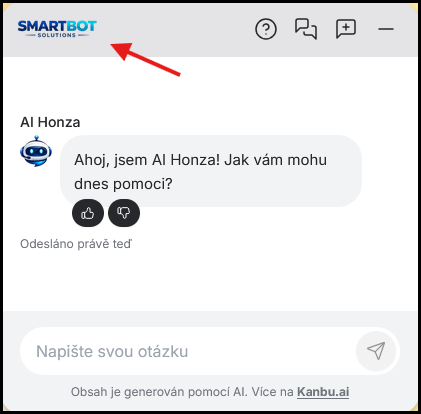
Header logo
Logo displayed in the top bar of the open chat. For best results, use an image with a transparent background.
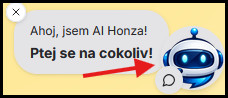
Logo bubble
Chatbot icon displayed on the website before the chat is opened. Displayed as a circular crop — users most often upload the same image as the system avatar.
Frequently asked questions
-
What appears if I don't upload an image?
The default Kanbu icon and avatar are used.
-
Where do I configure chatbot colors?
You configure colors right above the images in the same Theme configuration section — see Colors and theme.
-
How large an image can I upload?
It depends on the field: 512 KB for the system avatar, 1 MB each for the header logo and logo bubble. If an upload fails, check the file size first.