
Chatbot placement
Placement settings determine how the chatbot appears on the page — display mode (widget or full page), which side of the screen, and how far from the edges.
1. How to do it
- In the left menu under the selected agent, click Configuration.
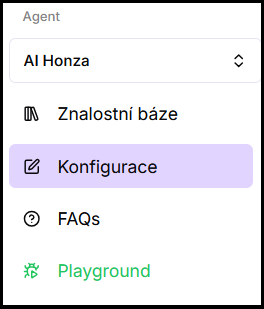
- Go to the Placement section.
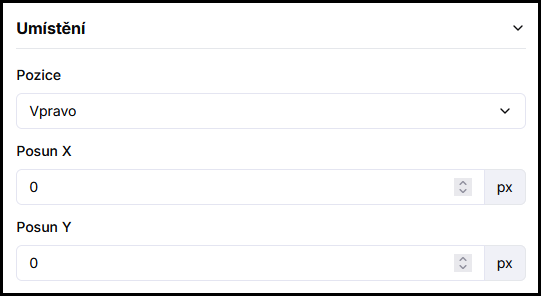
- Set the desired values.
- Click Save.
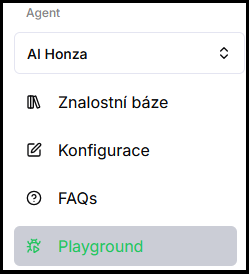
- Verify in Playground — try the behavior right away in the test chat.
2. What gets configured
Display mode
Controls how the chat looks when open:
- Widget (default) — classic dialog in the corner of the page.
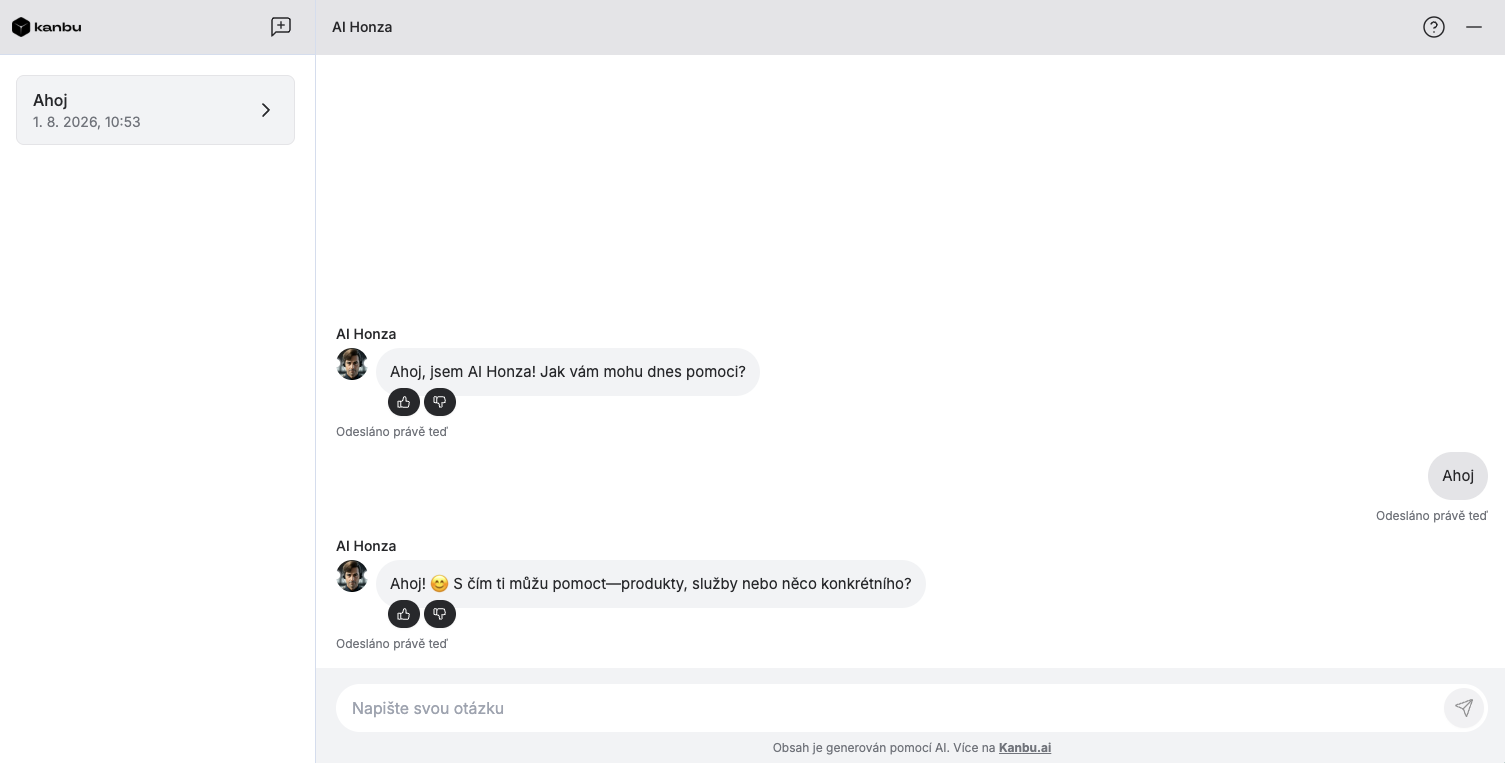
- Full page — chat across the whole page with a conversation sidebar (on desktop). While the chat is closed, the icon (bubble) and any callouts still show — position and offset settings below still apply to them.
Full page does not open the chat by itself. If the chat should expand as soon as the page loads, also turn on Open chat automatically in Personalization — see Bubbles and prompts and the tip below.
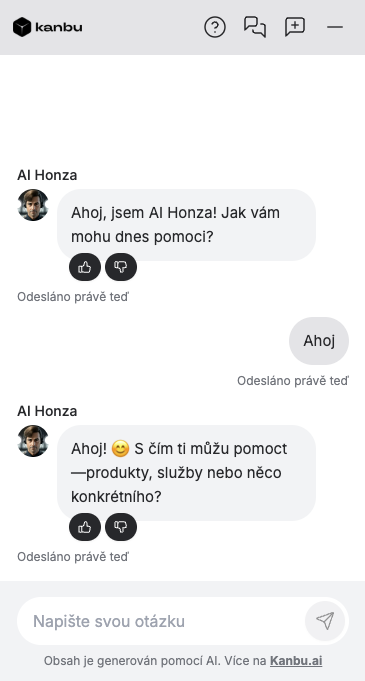
Position
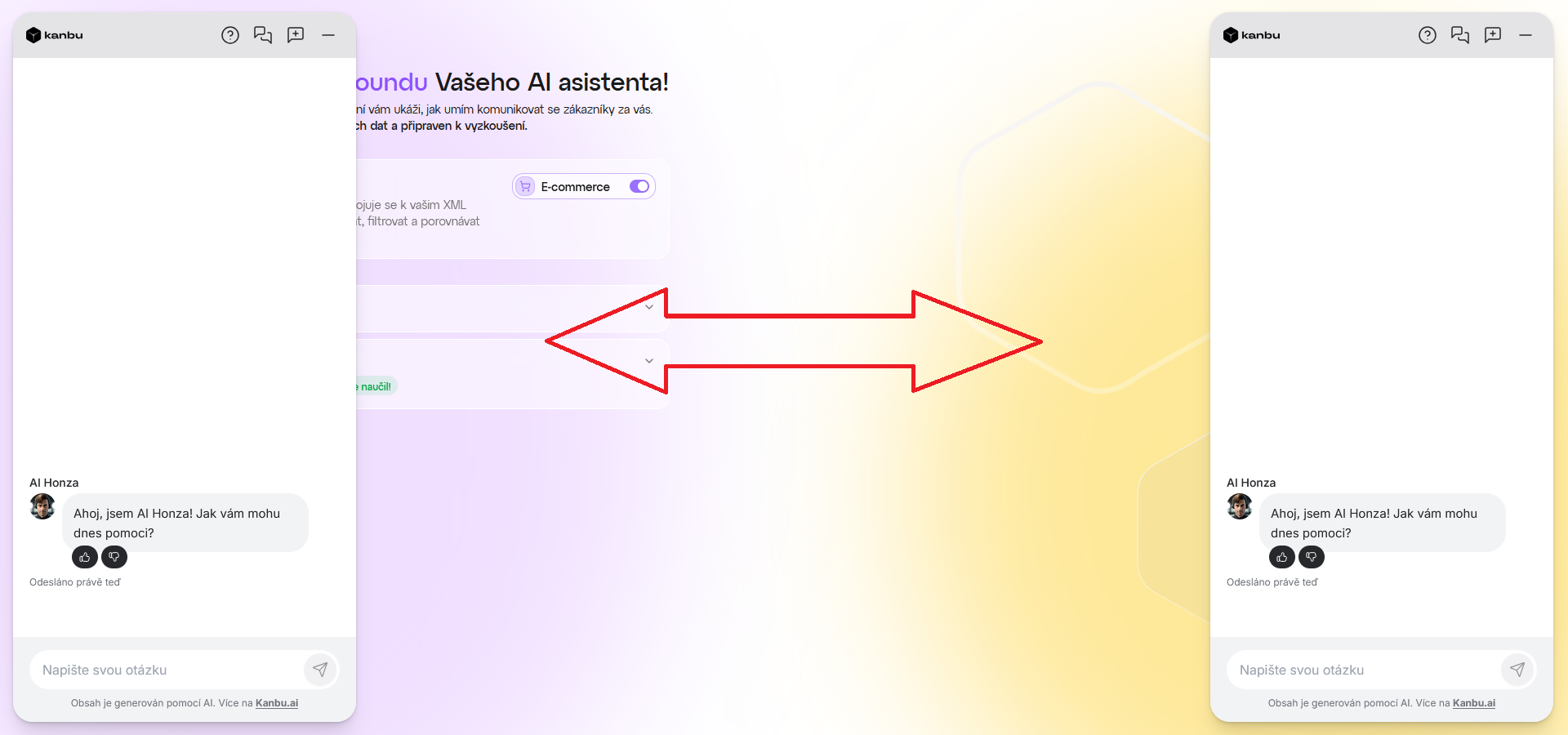
Determines whether the chatbot is placed on the right, left, or Center. This setting affects the chat icon (before opening) and the open window in Widget mode. In Full page, position mainly applies to the icon and callouts while the chat is closed.
Offset X
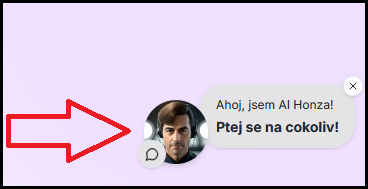
Horizontal offset of the chat icon from the screen edge in pixels. Affects only the icon — in Widget mode the open chat window follows Position. A positive value moves the icon inward on the page.
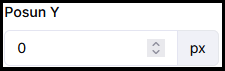
Offset Y
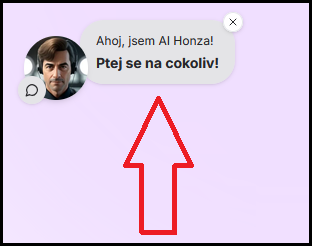
Vertical offset of the chat icon from the bottom edge of the screen in pixels. Affects only the icon. A positive value moves the icon higher.
3. Tip: full-page chat
Full page fits anywhere the chatbot should be the main (or only) interface on the page — not just a corner add-on next to regular site content. Typical cases:
-
On-site QR code — hotel room, reception, restaurant, trade fair, event. The visitor scans on their phone and wants to type immediately, not hunt for a corner icon.
-
Dedicated landing page — a short URL just for chat (for example
yourcompany.com/helpor a link shared by email / SMS). -
Tablet or kiosk — an information stand where the page has no other content and the chat should fill the screen.
-
Preview via Playground / Share where the chat should fill the whole page — for example a dedicated link without surrounding website content. If you instead want to show the widget exactly as on the website, keep Widget.
-
Longer conversations — on desktop, the conversation sidebar makes it easier to return to earlier threads (for example an internal helpdesk or advisory chat).
On a regular marketing website, Widget is usually enough so the chatbot does not cover the page content.
How to set it up
- In Placement, set Display mode → Full page.
- In Personalization, turn on Open chat automatically — otherwise only the icon shows first.
- Verify in Playground (the Share or Playground link in admin), or embed the script on the target page — see Deploying on the web.
If the chat should run only on a dedicated page (for example www.hoteladdress.com/chatbot), not the whole site:
- In Google Tag Manager, create a tag with this agent’s script and a Page View → Some Page Views trigger with Page Path → contains (or equals) →
/chatbot. - If another (widget) agent already runs on the site, keep it on its own trigger (for example all pages except
/chatbot, or only marketing sections) — each agent = its own tag + its own trigger. - As a safeguard in Kanbu, set Embed domains for this full-page agent to Whitelist only and enter e.g.
https://hoteladdress.com/chatbot.
GTM triggers primarily control where the script loads. Embed domains are a safeguard if the script is accidentally fired elsewhere.
Frequently asked questions
-
The chatbot overlaps an important element on my website — how do I move it?
Use Offset X or Offset Y. For example, try Offset Y 80 px if the chatbot overlaps a cookie bar or another fixed element at the bottom of the page.
-
Why did the icon move but the chat window opens in the same place?
Offset X and Y affect only the chat icon. In Widget mode the open chat window follows the Position setting (right, left, or center).
-
What is the difference between Widget and Full page?
Widget is a compact corner dialog. Full page fills the viewport and on desktop adds a sidebar with conversation history. Minimizing returns the visitor to the icon.
-
I share a Playground link and want only the dialog window, not the full page. How?
There is no separate “dialog-only” link — Share and Playground use the same URL. Appearance is controlled by Display mode. For a website-like preview, keep Widget — a colleague sees the corner dialog on the Playground page. Use Full page (+ optionally Open chat automatically) when the chat should fill the whole link page (QR, landing, dedicated help). Copy the link with Share on Configuration — see Playground.
-
When should I use Full page for a shared link?
When the chatbot should be the main (or only) page interface — QR code, kiosk, dedicated help page, chat-only landing. To preview the widget as website visitors will see it, keep Widget and send the Playground link.