
Playground
Playground is a public page where you try the chatbot exactly as it appears with the agent's current settings. Use it to test answers after changes to configuration, data sources, or the system prompt — and to share a preview with colleagues or customers without embedding the script on a website.
Playground is not a separate staging environment: it uses the same configuration and sources as the agent. A change saved in admin also applies on the website (if the agent is deployed). How to safely try changes without affecting the live bot is covered in Testing changes away from the live agent.
1. How to do it
- In the left menu, click Playground, or on the Configuration page click Share in the top right (copies the
playground.kanbu.ai/…link).
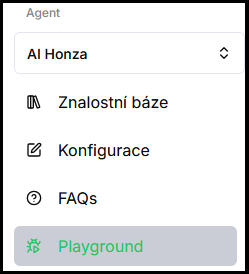
- Type a test query in the chat field and send it.
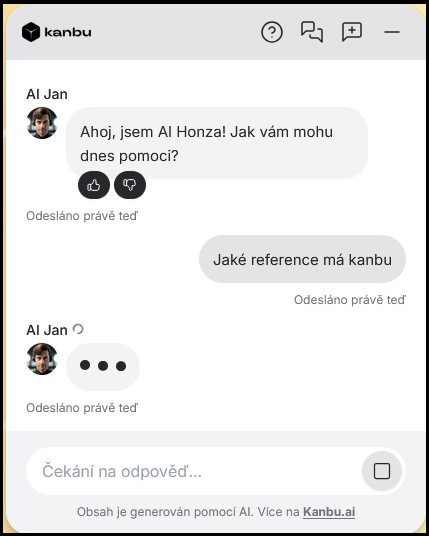
- Check the agent's response.
Changes in Configuration or Knowledge base appear in Playground immediately after saving — no refresh is needed.
2. What you will find in Playground
- Chat — a full chatbot window according to the agent's display mode (Widget or Full page).
- Agent type — switch between AI assistant and E-commerce agent (if active).
- Known sources — an overview of URLs and files the agent draws from. Shows the total number of sources and their status:
- Your chatbot has already learned your sources! — all sources are loaded.
- Your chatbot has already learned most of your sources! — some sources are still being processed.
- If no status is displayed, sources have not been added yet or are still loading.
- Add sources — a link directly to the agent's Knowledge base.
3. Sharing a preview
You can send the Playground link to anyone — a colleague for testing, or a customer instead of deploying on the web. No admin login is required.
- Open Configuration for the selected agent.
- In the top right, click Share — the link is copied to the clipboard.
- Alternatively open Playground in the left menu and copy the URL from the browser (
https://playground.kanbu.ai/<agent-id>).
How the link looks (corner widget vs. full-page chat) is controlled by the agent's Display mode — the same setting as on the website. See Chatbot placement.
4. Testing changes away from the live agent
Playground always uses the current settings of that agent. Kanbu does not offer a separate staging environment.
If you need to tune personalization, appearance, or behavior without affecting the live bot on the website:
- Create a new agent — see Agent management. There is no "duplicate agent" action yet for regular organizations; copy settings manually from the live agent.
- Give the new agent access to the same data — see Shared data sources across chatbots.
- Try changes on the test agent and verify them in its Playground.
- When you are happy, apply the same changes to the live agent (or deploy the test agent's script to the website).
An extra agent has no separate fee — only credits consumed by queries are billed.
5. Testing tips
- Test queries that your real users would ask — not ideally formulated questions.
- If the agent does not respond correctly, first check the source status in the Known sources section. If sources are not loaded yet, wait and try again.
- After each change to the system prompt or sources, test at least 3–5 queries from different areas.
- Playground respects the agent's mode: if the website uses Widget, a colleague sees the same corner dialog. Use Full page (+ optionally Open chat automatically) only when the chat should be the main interface of the link (QR, landing page, dedicated help) — not automatically for every share.
Frequently asked questions
-
How do I share a chatbot preview with a colleague?
On the Configuration page, click Share in the top right, copy the link, and send it. Your colleague does not need to log in. The same link opens via the Playground menu item. They see the chatbot in the same display mode the agent uses (typically Widget, as on the website).
-
Can I give customers a Playground link instead of deploying on the web?
Yes. The Playground URL (
playground.kanbu.ai/…) works as a standalone page to try the chatbot — no website script is required. Choose display mode based on what you want to show: Widget if the link should match what visitors see on the website; Full page for a full-screen chat experience (QR, landing, dedicated help). -
How do I get a link to only the dialog window, not the full Playground page?
There is no separate “dialog-only” link — Share and Playground use the same URL. Appearance is controlled by the agent's Display mode. To preview the widget as on the website, keep Widget. Use Full page (+ optionally open automatically) for a full-screen chat experience — for example a QR code or dedicated help page. Details in Chatbot placement.
-
Where is a test environment separate from the live bot?
There is no separate staging environment. Playground = the same agent as on the website. For safe experiments, create a second agent with shared sources — see the section above and Agent management.
-
Are Playground conversations saved to Messages?
Yes, Playground conversations appear in the Messages menu the same way as conversations from real users.
-
How do I tell if the agent is drawing from the wrong source?
Turn on the Show sources toggle in Configuration → Advanced settings. The agent will then show a link to the source it drew from below the answer.
Related
- Chatbot placement — Widget vs. Full page
- Agent management — second agent for testing
- Shared data sources across chatbots
- Deploying on the web
- Messages and conversation history
- How to optimize responses