
Bulk actions
If you manage a larger knowledge base, you'll encounter situations where you need to apply the same change to dozens of sources at once — move an entire group to a new folder, reconfigure update frequency after a content reorganization, or quickly delete outdated sources. Bulk actions handle this in one step.
1. How to select multiple items
- After selecting at least one item, Select all and Deselect buttons appear above the list.
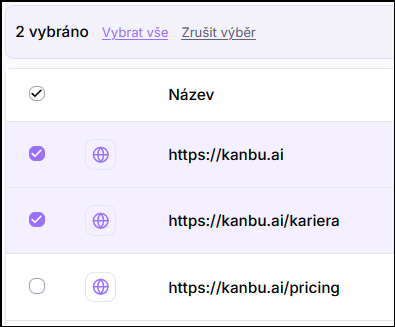
- Click while holding Ctrl to select individual items.
- Click while holding Shift to select a range — all items between the first and last click.
2. What can be done in bulk
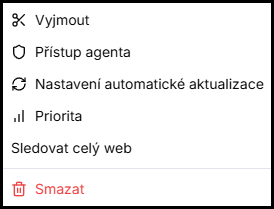
After selecting items, Refresh data and a three-dot icon appear above the list. Clicking the three dots expands a menu with additional actions:

- Cut — move selected sources to another folder. After clicking, go to the target folder and click Paste here.
- Agent access — set or change which agents have access to the sources.
- Set automatic updates — change frequency or threshold for selected sources at once. Requires a paid plan; without it the option is grayed out.
- Priority — set source weight for search.
- Monitor entire website — enable website monitoring for selected URL sources.
- Delete — remove selected sources. Deletion applies across the entire organization — all agents who had access to the sources lose it at once.
Monitored websites and folders show Edit instead of Refresh data.
Frequently asked questions
-
Why don't I see all actions in the menu?
Available actions depend on the type of selected items. For example, Monitor entire website appears only when URL sources are selected; Set automatic updates is grayed out without a paid plan.
-
Can I work with sources in multiple folders at once in bulk?
No. Bulk selection always works only within the currently open folder or list level.
Related
- Updating sources — managing and reorganizing sources
- Shared data sources across chatbots — agent access to sources
- Source prioritization — source weight for search