
Access and roles
You can invite colleagues to the organization as administrators and designate any of them as an operator for user contact. This page describes what an administrator can do, how to invite or remove one, and how to set up an operator.
1. What is an administrator
An administrator is the only user role in Kanbu and has full access to managing the organization and agents — from the knowledge base and agent settings through conversation history and live chat to payments and managing other administrators.
2. Inviting a new administrator
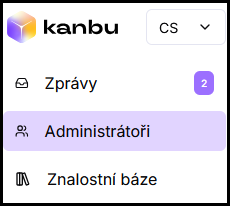
- In the left menu, click Administrators.
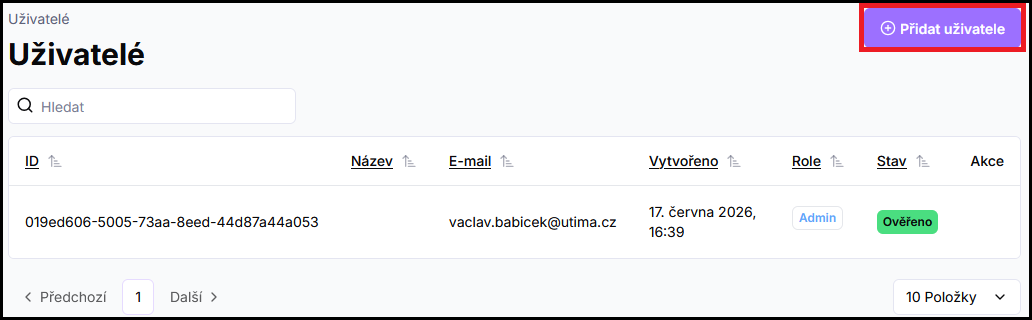
- In the top right, click Add user.
-
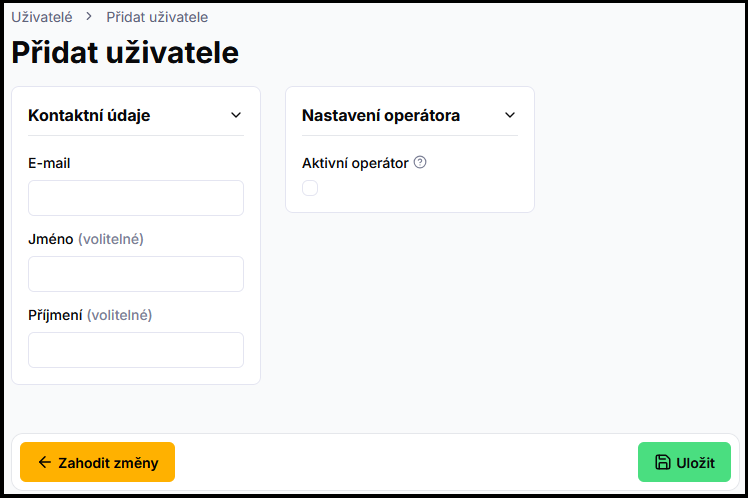
Fill in the details:
- Email — required; the invitation is sent to this address.
- First name and Last name — optional; can be added later.
- Active operator — optionally check right away that the new administrator should also be an operator.
-
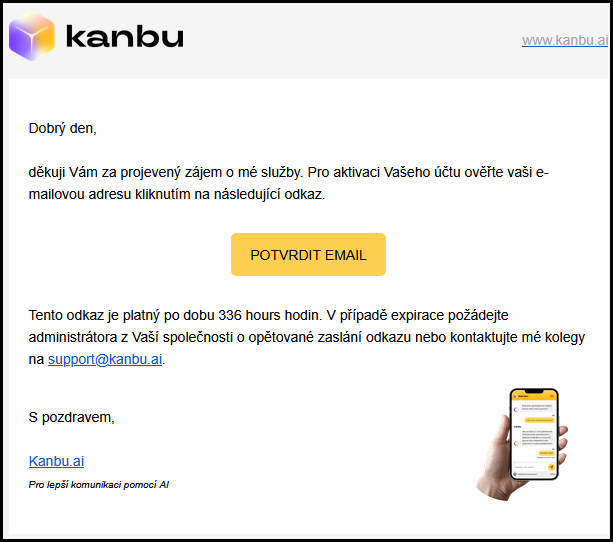
Click Save. An invitation is sent to the entered email address.
The invited user clicks the link in the email, sets a password, accepts the terms, and completes registration. They can then log in.
If the invitation does not arrive, resend it by clicking the airplane icon next to that user in the administrators list.
3. Removing an administrator
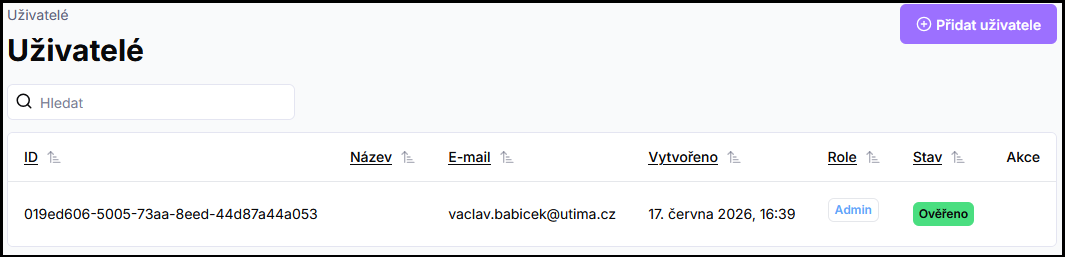
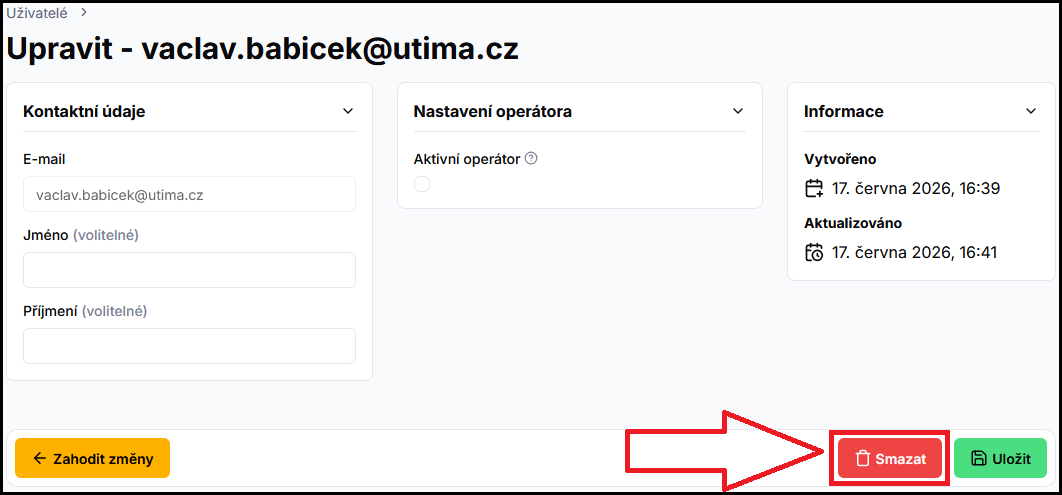
- In the Administrators menu, click the row of the administrator — their profile opens.
- In the bottom right, click Delete.
4. Operator — support contact
An operator is an administrator marked as an active contact for users. When the chatbot does not know the answer or the user requests connection to support, the operator's contact details are displayed. With multiple operators, the chatbot tries to recommend the most suitable one based on their focus area.
Set up an operator as follows:
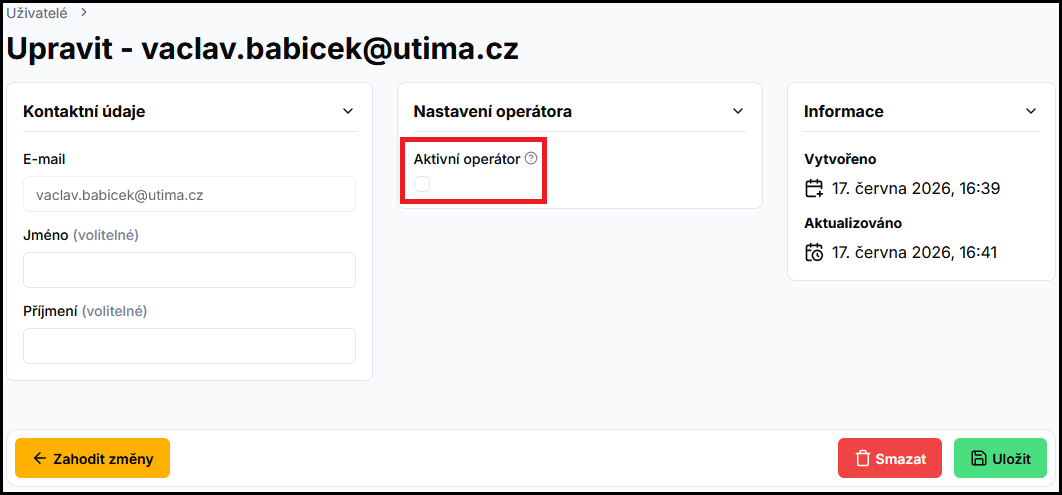
- In the Administrators menu, click the administrator you want to configure.
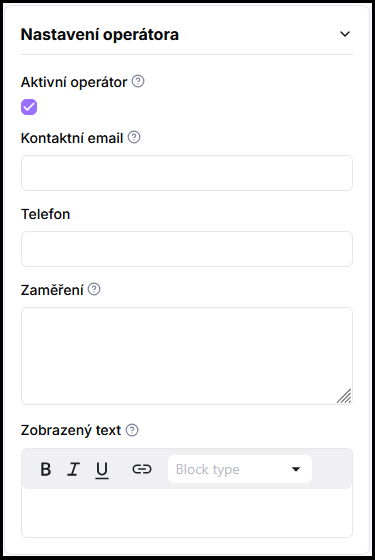
- In their profile, enable Active operator.
-
Optionally fill in contact details:
-
Contact email — email the user will see. If you leave the field empty, the administrator's registration email is used.
-
Phone — displayed to the user; an empty field is not shown.
-
Focus area — area the operator specializes in. The chatbot uses this to select the most suitable operator.
-
Display text — short text displayed together with contact details.
-
-
Click Save.
How operators work in chat is described in Live chat.
Frequently asked questions
-
What is the difference between an administrator and an operator?
An administrator is a user role with access to the app. An operator is not a separate role — it is an administrator additionally marked as a support contact.
-
How many administrators can I invite?
The number depends on your plan. See Choosing a subscription.
-
I see a user with a "Partner" badge in the administrators list that I didn't invite. What is this?
Your organization is managed by a Kanbu partner — this user is their assigned contact for your organization. They don't count against your administrator limit. You can reach out to them with billing or subscription questions the same way you would to Kanbu support.
Related
- Live chat — how operators communicate with users
- Organization management — organization settings