How to optimize answers
If the chatbot does not respond as you expect, the cause is most often data quality or system prompt settings.
1. Where to start
First find out what kind of problem you are dealing with:
- The agent gives inaccurate or made-up information, or says it does not know something even though it should → the problem is likely in the data. See Data quality check.
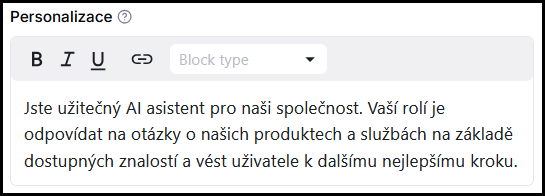
- The agent answers correctly but with an unsuitable tone, too generally, or strays from its role → the problem is likely in the system prompt. See Personalization.
Most often it helps to start with a data check and then fine-tune the system prompt — combining both brings the biggest improvement.
2. System prompt settings
The system prompt is a text instruction that defines the agent's role, tone, and behavior rules. It is entered in the Agent instructions field in Configuration. A well-written prompt significantly improves consistency and answer accuracy.
3. Data quality check
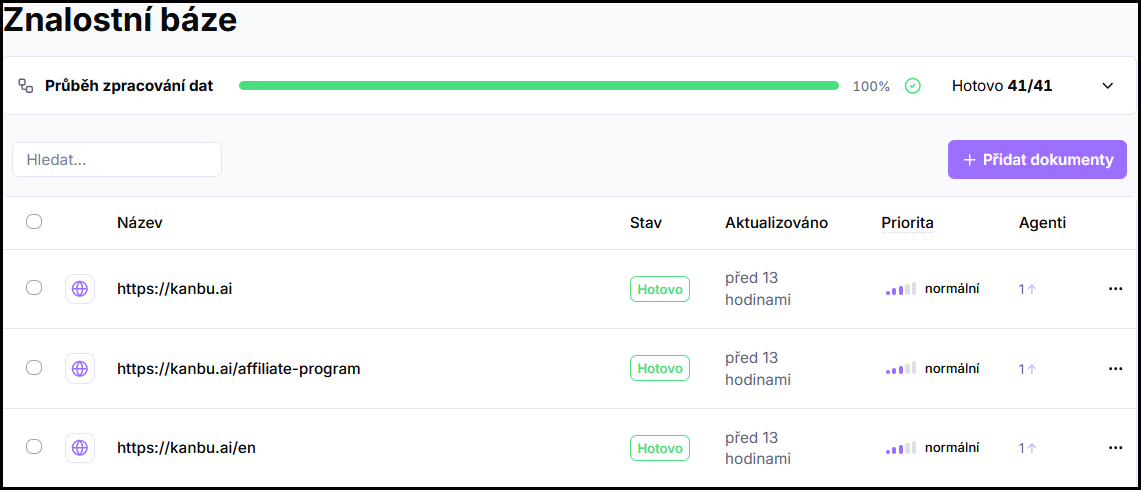
If the agent draws from poor-quality, outdated, or missing sources, even a good system prompt will not help. Review the status of sources in the Knowledge base and verify that the agent has access to the right information.
4. Choosing an AI model
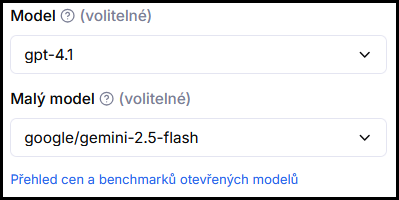
If data and system prompt look good but answers still do not meet expectations, you can try a different AI model as another option. Kanbu lets you switch models in the Advanced settings section in Configuration — different models vary in accuracy, speed, and cost.