
Data quality check
If the agent answers inaccurately, makes up information, or says it does not know something even though it should, the cause is usually in the data — missing sources, outdated content, or pages the agent cannot load correctly.
1. How to do it
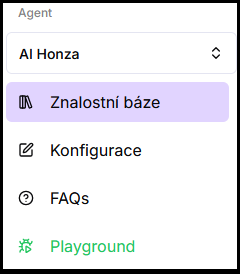
- In the left menu under the selected agent, click Knowledge base.
- Check the list of sources and their status.
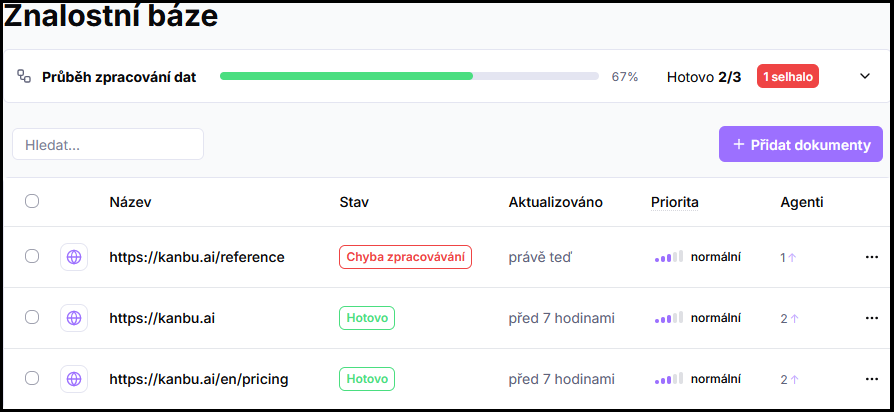
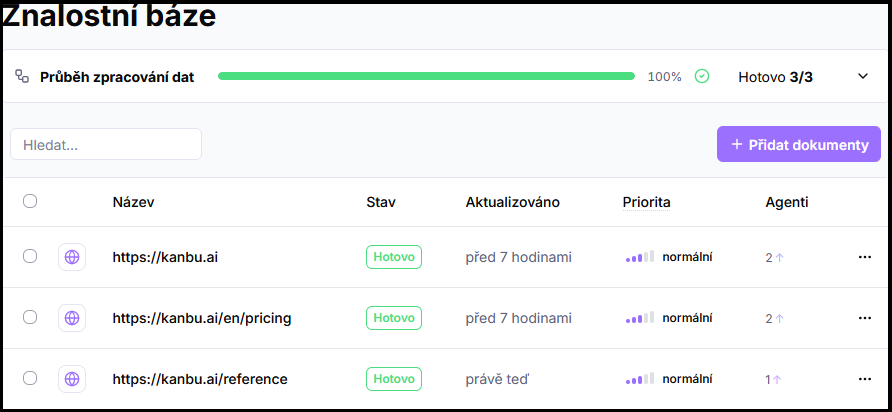
- For sources with errors or outdated content, perform a manual refresh or remove the source and add it again.
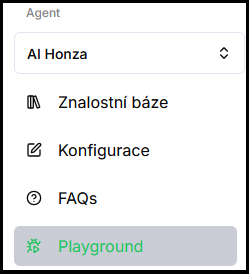
- Test the corrected answers on the Playground.
2. What to focus on
- Missing sources — is the page or document with relevant information even added to the Knowledge base?
- Outdated content — if you have updated the website or documents, refresh the relevant sources manually or set up automatic updates. See Updating sources.
- Pages the agent did not load — some pages may be behind login, blocked by robots, or have content generated by JavaScript. The agent cannot see such content.
- Too much unrelated data — if the agent draws from many sources that overlap or contradict each other, answers may be inaccurate. Consider setting source priorities — see Source prioritization.
- FAQ as a quick fix — if you know exactly which question the agent answers incorrectly, add the correct answer directly as an FAQ entry. See Creating FAQ.
Frequently asked questions
-
The agent says the right things, but answers are too general. Is that a data problem?
Probably not — that is more likely a system prompt issue. See Personalization.
-
How do I find out which source the agent drew an answer from?
Turn on the Show sources toggle in Configuration → Advanced settings. The agent will then show a link to the source below the answer.