
Chatbot appearance
In this section, you configure how the chatbot looks on your website — colors, logos, text, and placement.
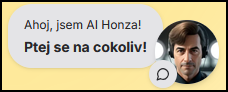
Edit the chatbot welcome message and popup bubble text.

Choose a light or dark style and set custom colors to match your brand.

Upload the agent avatar, chat header logo, and chatbot icon on the website.

Configure popup bubble visibility, automatic chat open, response rating buttons, and engagement prompts.
Choose display mode (widget or full page), which side of the page the chatbot appears on, and how far from the edges.
Practical recommendations for colors, images, and placement that help the chatbot fit visually into your website.