
Live chat
Live chat lets an administrator take over an ongoing conversation from AI and respond to the user directly as a human — for example for a more complex query or when a customer explicitly wants to speak with a live person. The feature is available only when the user is actively online.
1. Before you start — set business hours
Business hours tell the user when they can expect a quick reply from an operator. You set them in organization settings.
The Yes, connect me button appears in chat only during business hours. Outside them — or when no open hours are configured — the user gets a contact card and the agent explains that live chat is not available right now — see Operator handoff. You can still send a takeover request from admin at any time.
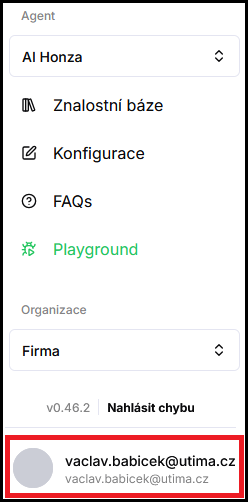
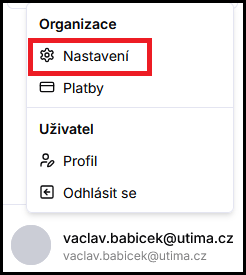
- In the bottom left corner of the app, click your name and email and select Settings.
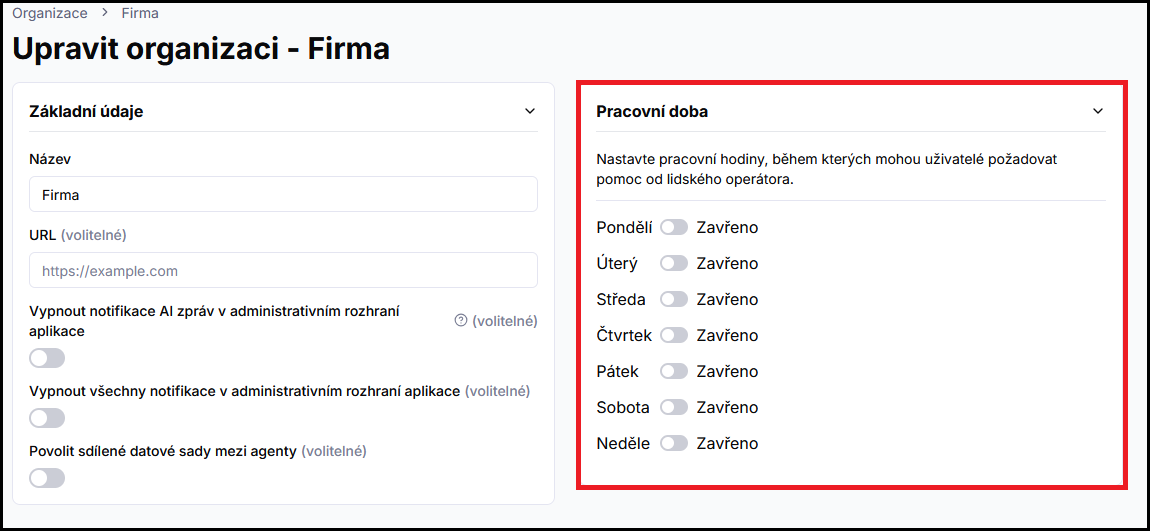
- In the Business hours section, enable the days of the week when an operator is available.
- For individual days, set the hours and click Save.
Details about other organization settings are in Organization management.
2. How to take over a conversation
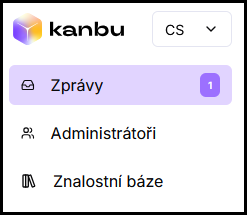
- In the left menu, click Messages.
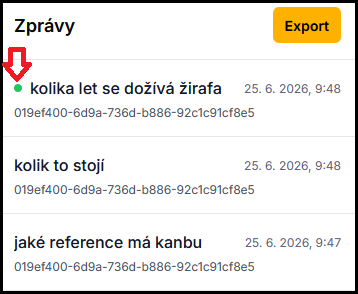
- Find a thread marked with a green Online dot — the user currently has the chat open.
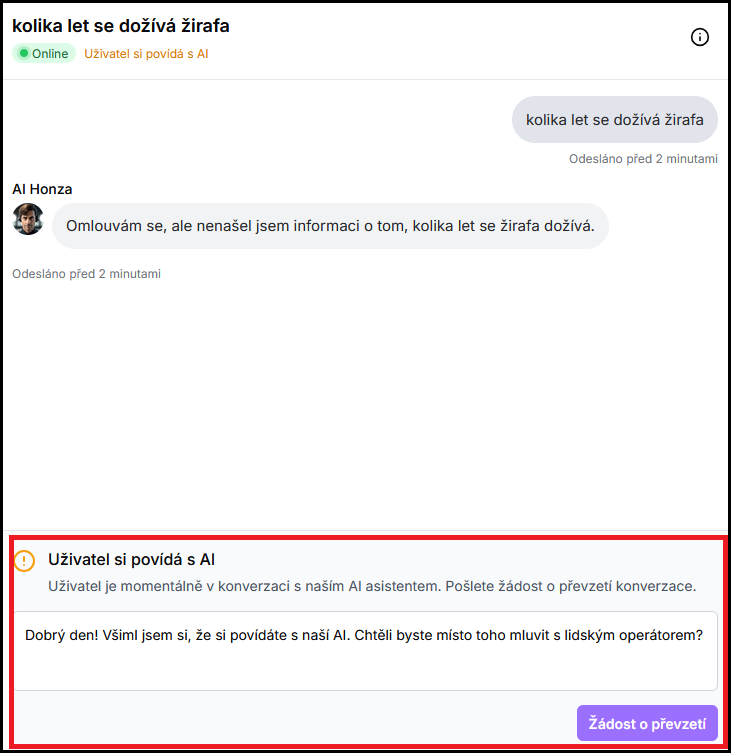
- At the bottom of the thread you will see a text field with a pre-filled takeover message. You can edit the text.
- Click Request takeover — the user will see a message in the chatbot with Accept and Decline buttons.
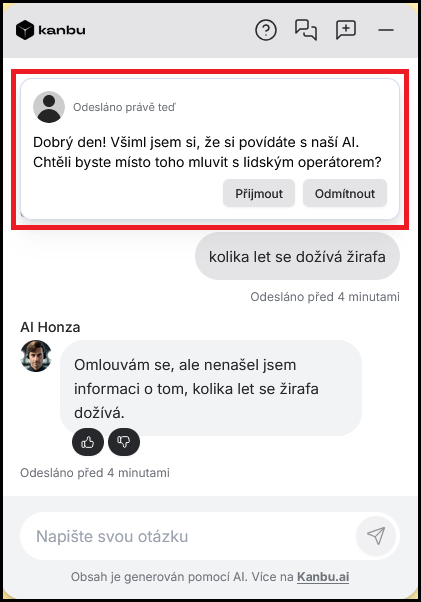
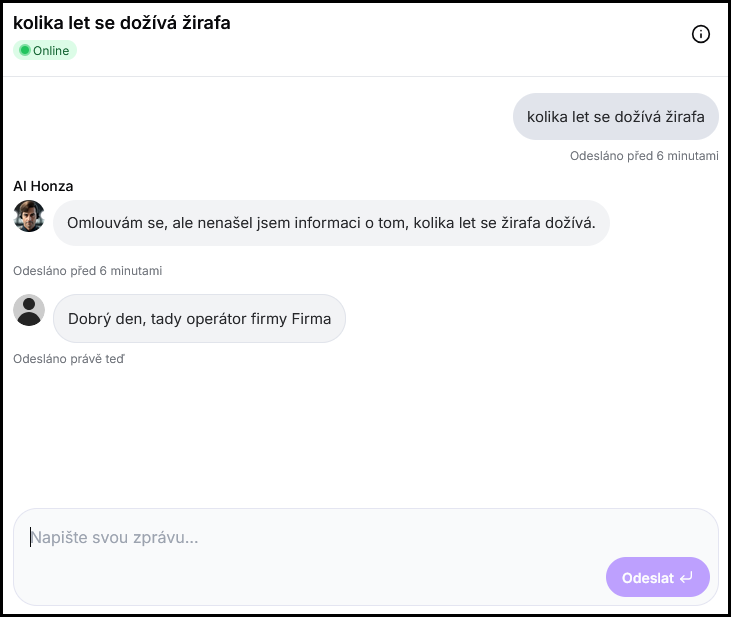
- If the user accepts, AI is turned off and you write as a human operator.
- If the user declines, the request is cancelled and you can send it again if needed.
3. What the user sees in the chatbot window
- After you send a request from admin, the user sees a message in chat with Accept and Decline buttons. Until they confirm, they remain in conversation with AI.
-
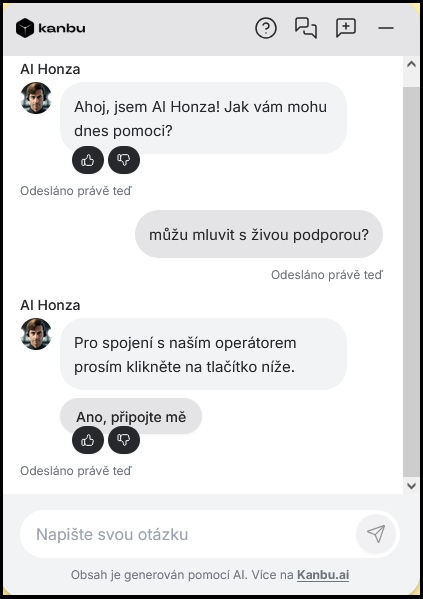
If the user requests a connection themselves with Yes, connect me (only during business hours), AI turns off and the chat header shows Waiting for operator with a running timer and Typically responds within 2 minutes. They can still click Switch to AI.
-
If the user accepts your takeover request outside business hours, they see the same waiting state — with Outside business hours — an operator may not join right away.
-
After the first message from an administrator, the header text changes to Talking to human operator. AI stays off for the duration of live chat.
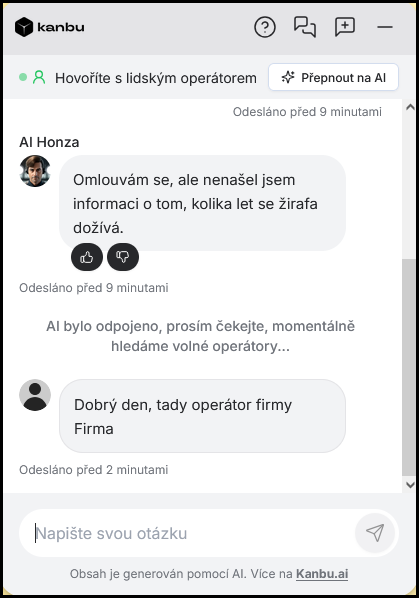
- The user can click Switch to AI at any time and return to conversation with the assistant.

- Takeover can start without your request from admin — it is enough that the user confirms a connection with Yes, connect me during business hours.
4. Notifications for new messages and operator requests
Badge in Messages
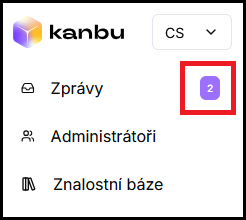
New messages are indicated by a numbered badge on the Messages item in the left menu. By default it appears for live chat messages and AI messages.
Email when the user requests an operator
When the user confirms a connection to a human in chat (for example Yes, connect me), Kanbu sends an email with a conversation preview and a link straight to the thread in Messages.
- The email goes to active operators. If none are set, it goes to the organization’s administrators.
- The email is not sent when you start takeover from admin (you are already in Messages).
- The link in the email opens that thread. If you are not signed in, after login you return to the same URL.
How to turn notifications off
- Disable AI inbox notifications — hides badges for AI threads; operator handoff emails and live-chat notifications stay on.
- Disable all inbox notifications — turns off badges and operator handoff emails.
Frequently asked questions
-
Do I need to have an operator configured for live chat to work?
No. Live chat works independently of active operator settings — any conversation can be taken over by an administrator directly in the Messages menu. Active operator handles something else: a static contact the chatbot offers when it does not know the answer (see Referral to operator), and also who receives the handoff email.
-
Why is Yes, connect me missing outside business hours?
Live connection from chat is only during business hours so the user is not left waiting for someone who is not available. Contact details and the agent’s explanation remain. Outside hours, live chat can start only after Accept on your takeover request from Messages — then they see the note that a reply may not come right away. Details in Operator handoff.
-
I did not get an email about an operator request. What should I check?
Make sure Disable all inbox notifications is not on in organization settings. The email goes to active operators (or administrators if no operator is set). It is not sent for a takeover you started yourself from admin.
-
How does the user end live chat and return to AI?
At any time by clicking Switch to AI in the chat header.
-
What happens when the user goes offline during live chat?
The thread remains in history, but further replies will no longer be delivered in real time. If the user is offline, you can write in the thread without restriction, but they will see messages only when they return.
-
I see an Online dot on a thread but do not see the takeover request. Why?
The text field with the request appears only for threads where the user is actively online. Try refreshing the thread.