
Messages and history
The Messages menu contains the history of all user conversations with all chatbots in the organization. It serves as an overview of what users are dealing with, for browsing specific threads, and for exporting data for further analysis.
1. How to do it
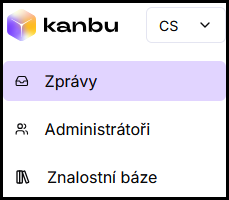
- In the left menu, click Messages.
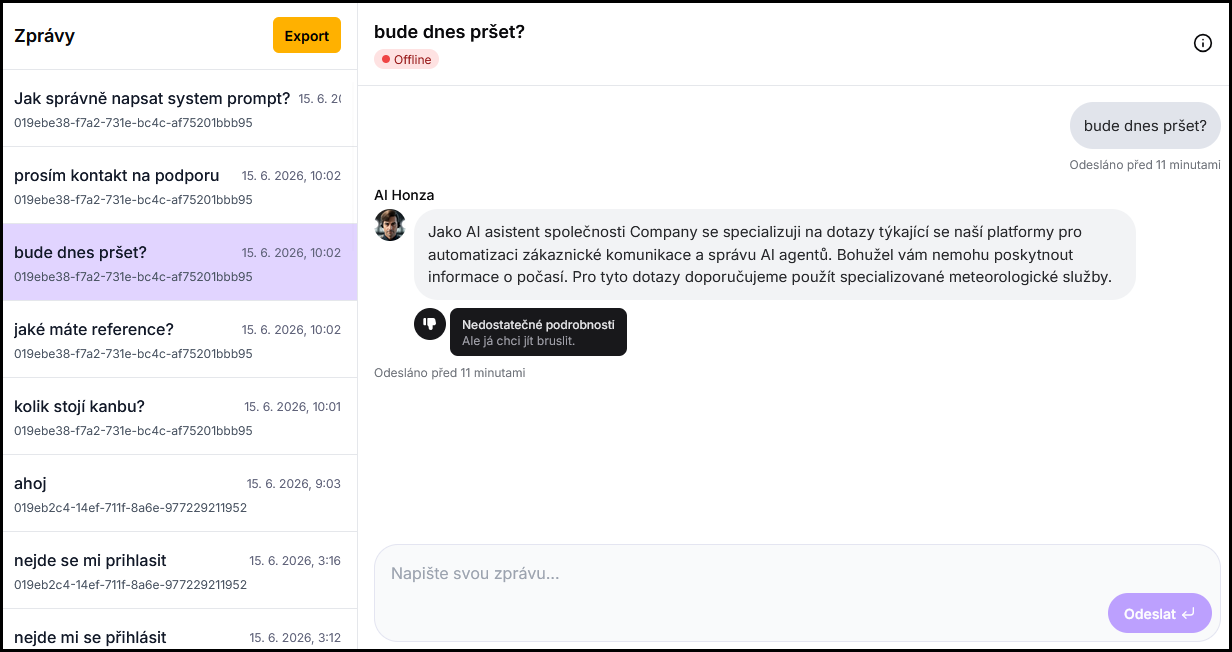
- In the list, select the thread you want to view.
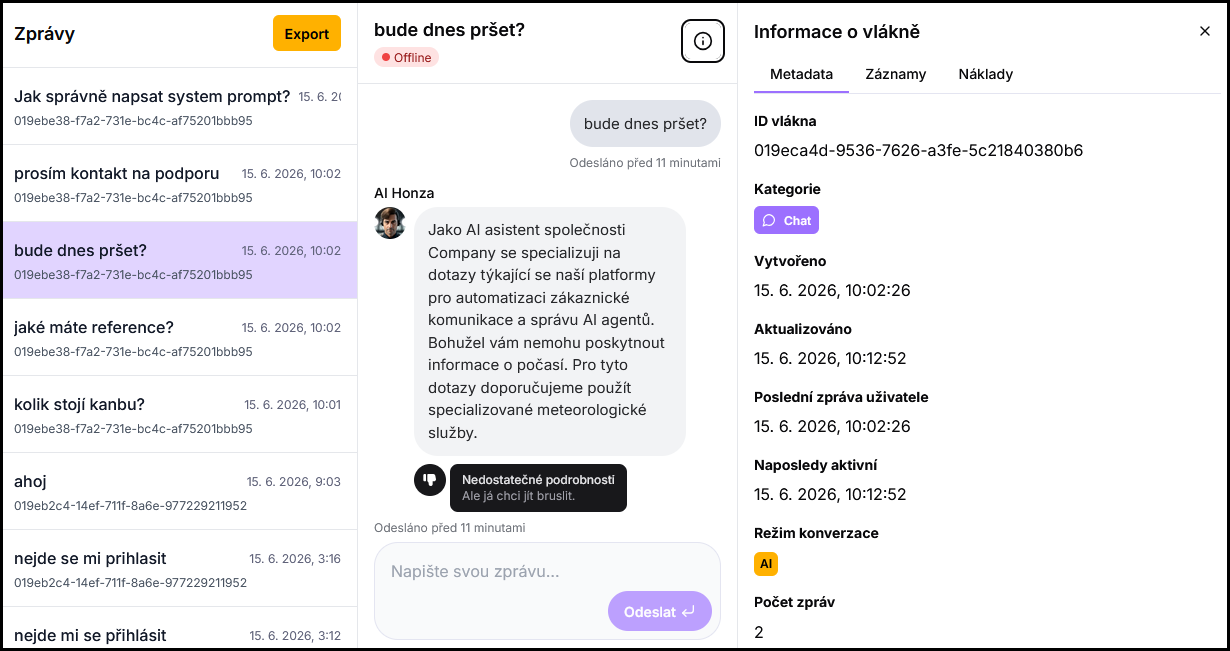
- Click the i icon in the top right corner to open the panel with detailed thread information.
2. What you will find in the Messages menu
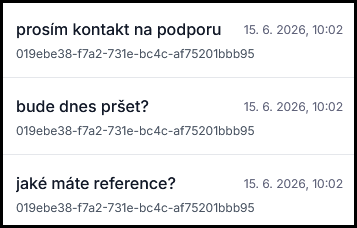
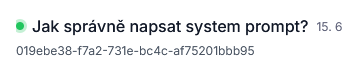
- Thread list — each thread corresponds to one conversation. It shows the user's first message, date, and user ID.
- Thread detail — full conversation transcript including any user feedback (thumbs up/down and written comment).
- Feedback — thumbs up or down and optionally a short message from the chatbot user. Displayed in exported conversation history.
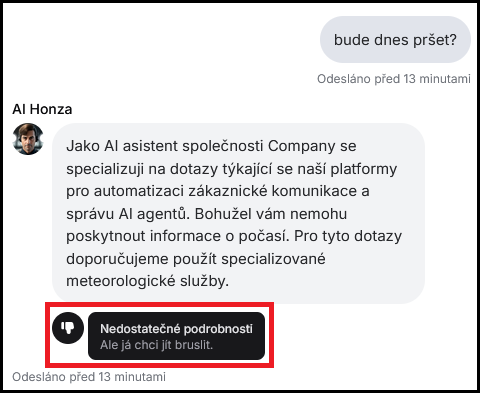
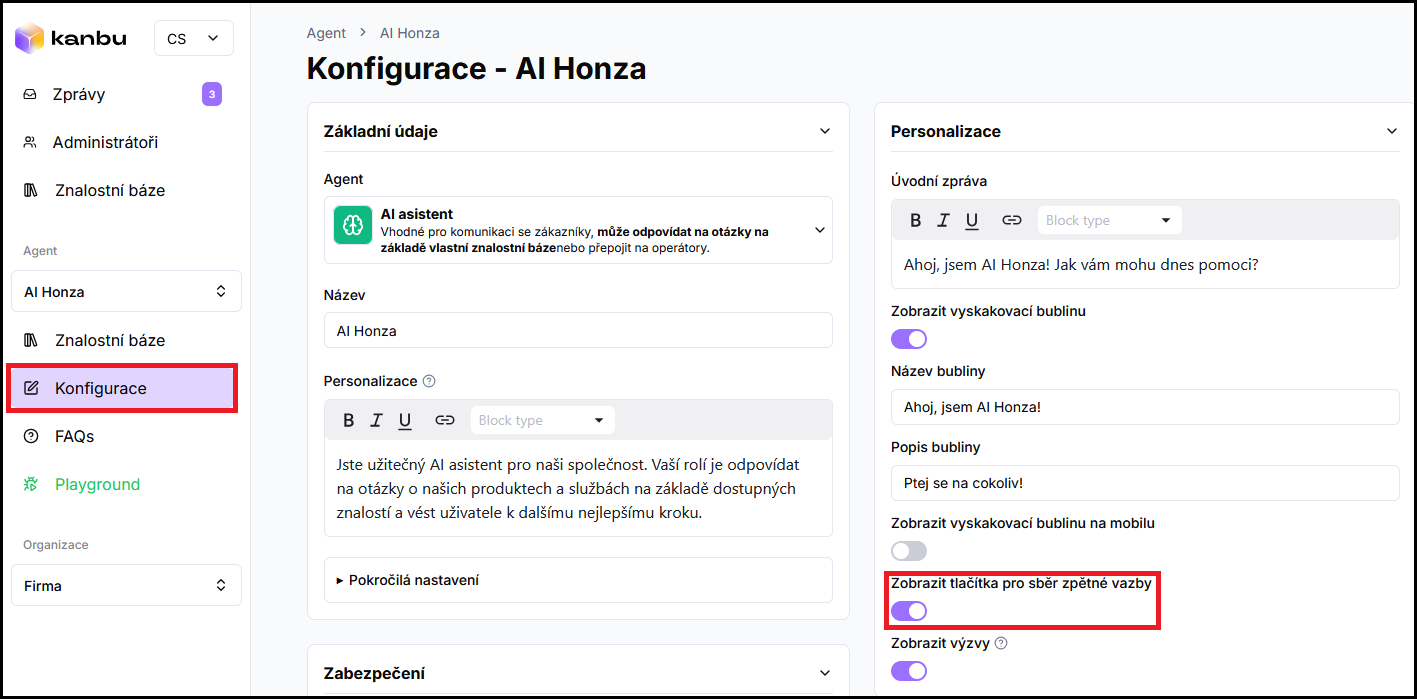
Display of thumbs up and down to the user in chat is configured in the Configuration menu with the Show buttons for collecting feedback toggle. We recommend leaving it enabled for at least the first month after deploying the chatbot to collect user feedback.
-
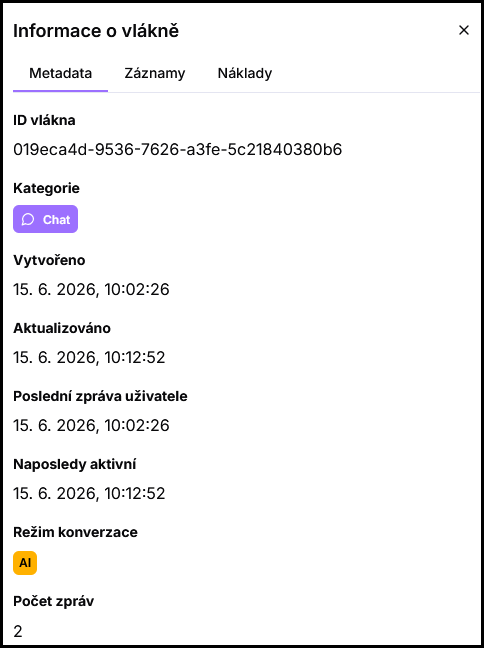
Thread information panel — metadata available after clicking the i icon:
- Thread ID
- Category
- Creation date and last activity
- Time of last user message
- Conversation mode (AI or human operator)
- Message count
3. Exporting conversations
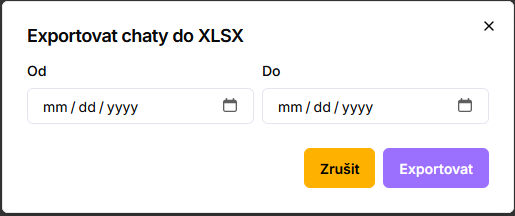
Click the Export button above the thread list to download conversation history as an XLSX file. The export contains all threads of the current agent including user feedback.

Frequently asked questions
-
How do I know if a user is currently online?
Threads with an active user are marked with a green Online dot in the list and in the thread detail. You can offer online users a switch to live chat — see Live chat.
-
Are Playground conversations also shown in the Messages menu?
Yes, Playground conversations appear in the thread list the same as conversations from real users.