
Payment method
You manage card payments directly in the app. Payment by bank transfer or subscription for a full year is arranged individually through support. This page describes all three options.
1. Payment card
You manage cards in the secure payment service environment, which you access from the Payments menu.
- In the bottom left corner of the app, click your name and email and select Payments.
- In the top right corner, click Manage billing and invoices. You will be redirected to the payment service.
- In the Payment methods section you will see the currently saved card.
Adding a new card
- Click Add payment method, fill in the card details, and confirm with the Add button.
- The new card is automatically set as the default payment method.
Managing saved cards
For each card, click the three dots and choose:
- Use as default — sets the card as the primary one for future payments.
- Remove — completely deletes the card from the payment service.
When finished, click Back to Kanbu.ai on the left and return to the admin app.
2. Invoices
Issued invoices are in the same payment service environment. In the Payments menu, click Manage billing and invoices and scroll down to the Invoice history section. For each invoice, click to view a preview and download it.
3. Bank transfer
Payment by bank transfer cannot be set up in the app — we arrange it manually. Write to us at support@kanbu.ai and we will agree on the details.
Once the plan is assigned, invoicing works like this:
- You receive a link to a secure payment page on your billing email — use it to pay by card or bank transfer, or to download the invoice. The chatbot runs even before the invoice is paid.
- Please pay the invoice as soon as possible. If the link expires in the meantime, write to support@kanbu.ai or contact your installation partner and we/they will send a fresh one.
- If an invoice remains unpaid, you'll first get an email reminder, then later an escalation. If it's still unpaid 14 days past its due date, the subscription is canceled and the organization moves to the Free plan.
4. Annual billing
In the app you subscribe to a plan on a monthly basis. If you want to subscribe to a plan for a full year in advance, write to us at support@kanbu.ai and we will set up annual subscription for you manually.
5. Cancelling your subscription
You cancel your subscription in the same place where you manage cards and invoices:
- In the bottom left corner of the app, click your name and email and select Payments.
- Click Manage billing and invoices. You will be redirected to the payment service.
- Find the cancel subscription option and follow the on-screen instructions.
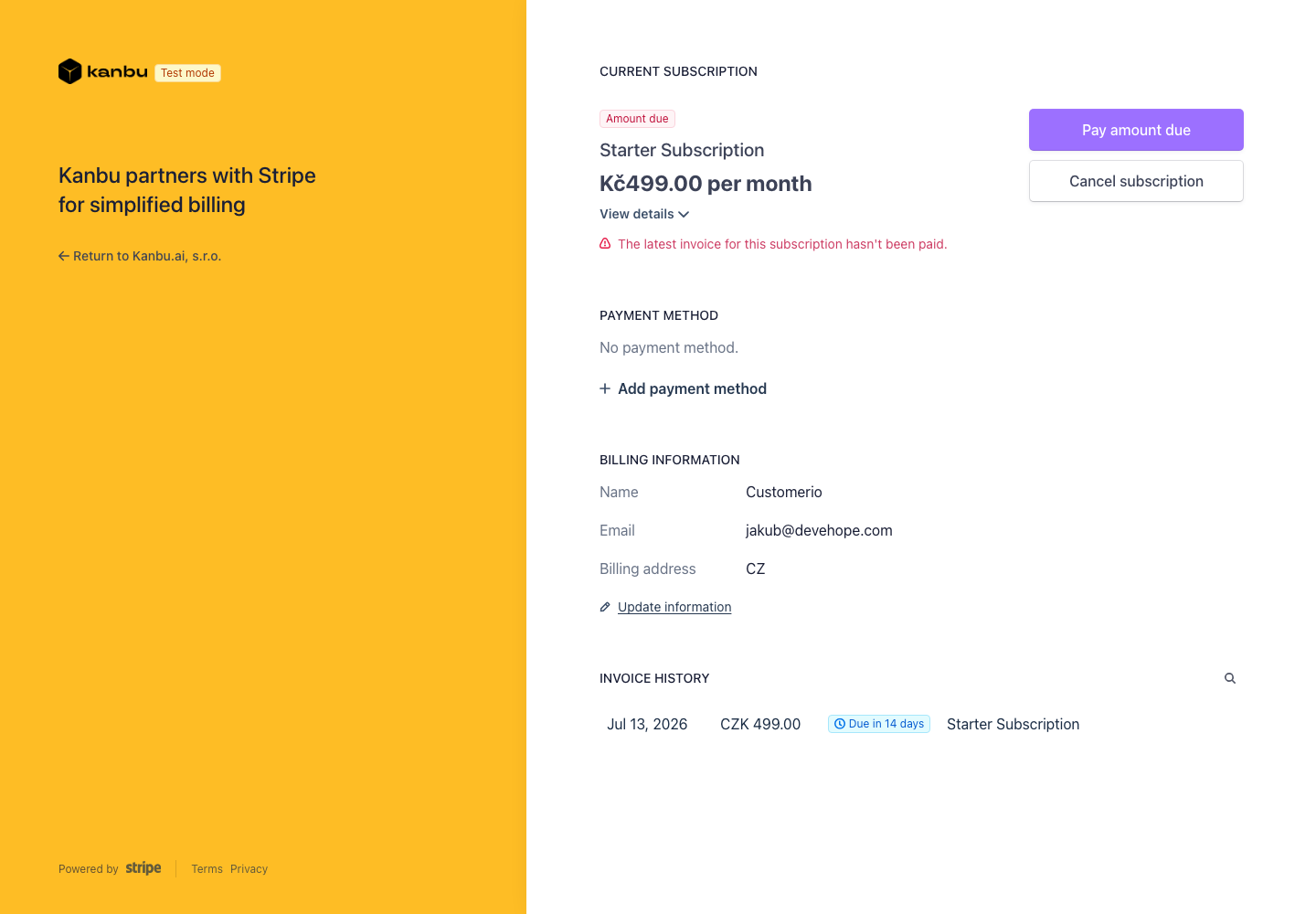
After cancelling, the organization stops paying for the next period; the confirmation screen will show exactly when access ends. You can cancel this way at any time — if you change your mind, write to support@kanbu.ai.
Frequently asked questions
-
Where do I find my invoices?
In the Payments menu, click Manage billing and invoices and scroll to the Invoice history section.
-
How do I change my payment card?
Via Manage billing and invoices add a new card and set it as default, or remove the old one. See the process above under Payment card.
-
Can I pay by invoice / bank transfer instead of card?
Yes, by arrangement. Write to support@kanbu.ai.
-
How do I cancel my subscription?
Via Manage billing and invoices in the Payments menu — see Cancelling your subscription above.
-
What happens if I don't pay a bank-transfer invoice on time?
You'll get an email reminder, then later an escalation. 14 days past the due date, the subscription is canceled and the organization moves to the Free plan. Your prepaid balance stays intact.
Related
- Choosing a subscription — selecting and changing your plan
- Billing details — details for invoicing
- Topping up credit — credit and topping it up