
Website monitoring
Website monitoring creates special folders in the knowledge base and continuously crawls your website, capturing newly added pages and alerting you to those that disappeared. The data store stays aligned with the current state of your website without manual oversight.
Requires a paid plan.
1. How to enable monitoring
1.1 When adding a new source
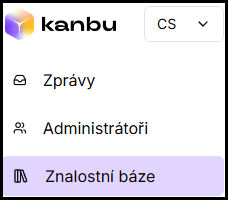
- In the left menu, open Knowledge base and select a URL source in the list.
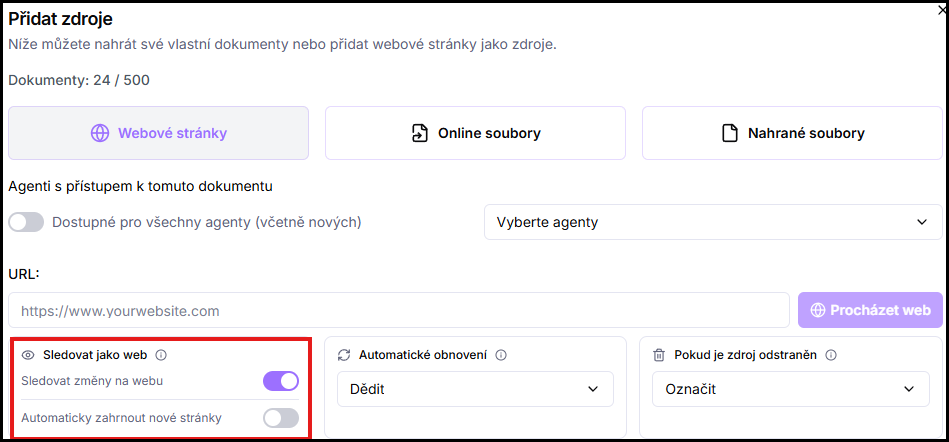
- When adding sources, enable the Monitor as website switch. When enabled, an additional option appears — Automatically include new pages — which adds newly discovered pages to the knowledge base automatically without manual approval.
1.2 Retroactively on an existing source
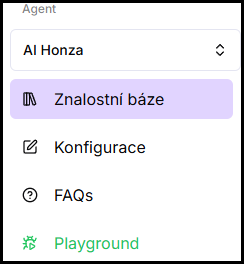
- In the left menu, open Knowledge base.
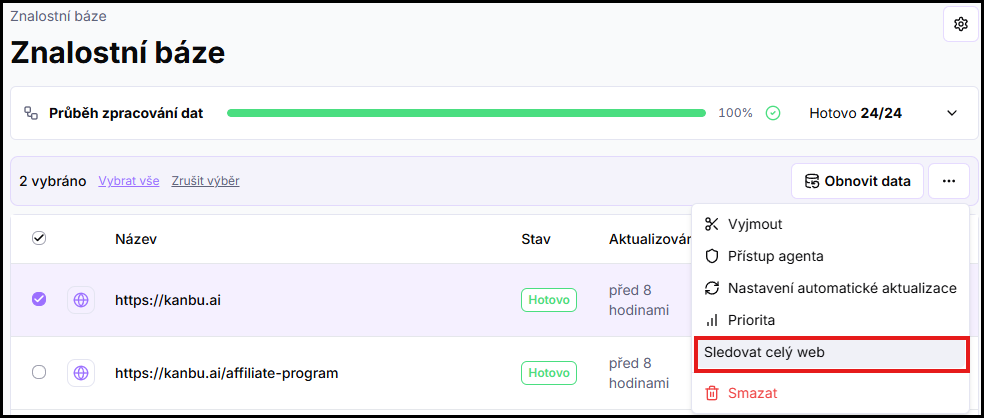
- Select the desired source in the list and in the three-dot menu above the list click Monitor entire website.
- In the dialog, select the website domain — under this name a folder will be created in the list that groups all pages of that website. The number in parentheses is the count of sources with this domain that you selected.
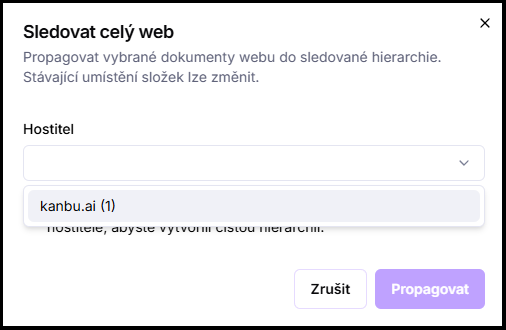
- Optionally check Also move all existing website documents — other URLs from the same website that you already have in the knowledge base will be moved into the same folder.
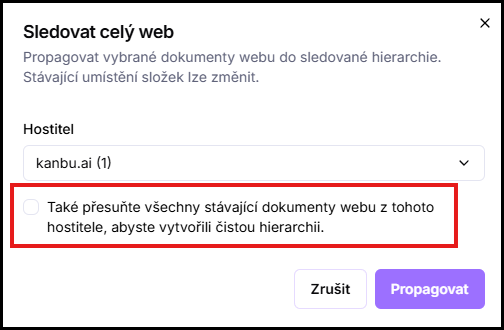
- Confirm.
2. Page statuses
Each page of a monitored website has a status that indicates how Kanbu handles it.
New
The page was newly discovered during the last crawl. It's not yet in the knowledge base — you can add it or ignore it.
Existing
The page is in the knowledge base and Kanbu continuously checks and updates it.
Removed
The page was missing from the website during the last crawl. What happens to it depends on the Behavior on removal setting.
Not monitored
You manually excluded the page from monitoring. Kanbu doesn't check or update it, but it remains in the list — you can include it again anytime.
3. Behavior on removal
Determines what happens when a page disappears from the website during a crawl. You'll find the setting in the knowledge base after selecting a monitored website and clicking the Edit button above the list.
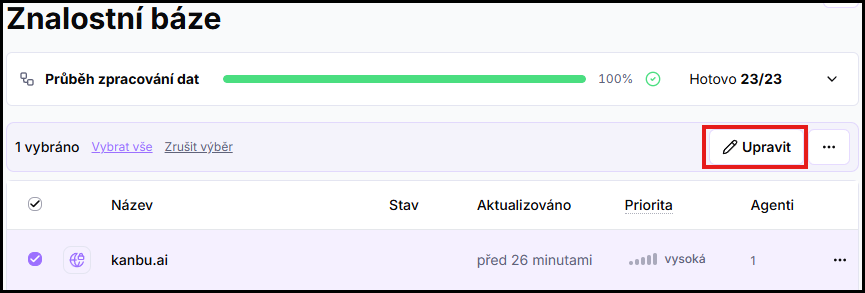
- Flag — the page stays in the knowledge base and switches to Removed status. The decision what to do next is up to you. Recommended option for most cases.
- Remove — the page is automatically removed from the knowledge base.
- Ignore — the page stays in the knowledge base unchanged, even if it's missing from the website.
4. Manual synchronization
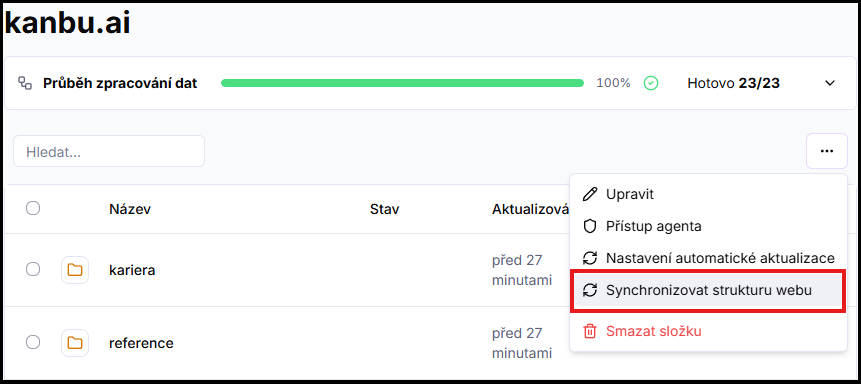
If you want to run a website crawl immediately (for example after a major website update) and don't want to wait for the next scheduled cycle, open the monitored website in the knowledge base and above the source list click the three-dot icon and then Synchronize website structure.
Frequently asked questions
-
I add monitoring retroactively — what happens to pages I already have in the knowledge base?
If you check the option to move existing documents when configuring, Kanbu will place them under the selected domain and connect them to the monitoring structure. Their content is not lost or reprocessed.
-
I enabled automatic inclusion of new pages — will all of them really be added?
Yes, all newly discovered pages are automatically added to the knowledge base. If you don't want certain website sections included automatically (for example blog or archive), we recommend turning this option off and approving new pages manually.
-
How do I know the crawl completed?
After synchronization, page statuses in the list are updated — new pages appear with New status, missing ones switch to Removed.
Related
- Updating sources — automatic refresh of existing page content
- Adding sources — how to add a source and configure monitoring when adding
- Bulk actions — bulk operations on monitored website pages