
Live chat
Live chat umožňuje administrátorovi převzít probíhající konverzaci od AI a odpovídat uživateli přímo jako člověk — třeba u složitějšího dotazu nebo když si zákazník výslovně přeje mluvit s živým člověkem. Funkce je dostupná jen ve chvíli, kdy je uživatel aktivně online.
1. Než začnete — nastavte pracovní dobu
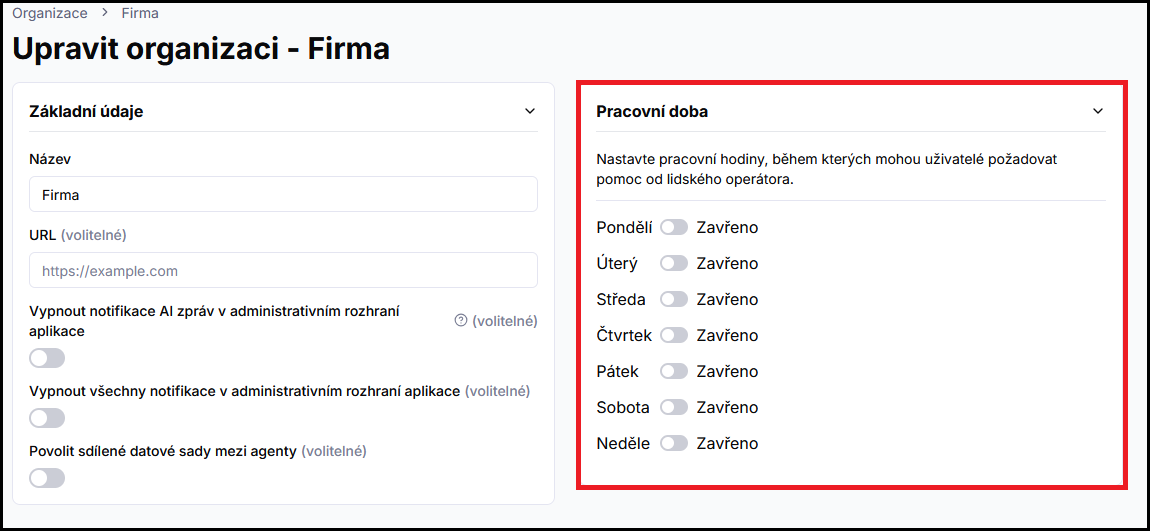
Pracovní doba říká uživateli, kdy může očekávat rychlou odpověď operátora. Nastavíte ji v nastavení organizace.
Tlačítko Ano, připojte mě se v chatu zobrazí jen v pracovní době. Mimo ni — nebo když žádné otevřené hodiny nejsou nastavené — uživatel dostane kontaktní kartu a agent vysvětlí, že živý chat teď není k dispozici — viz Odkázání na operátora. Žádost o převzetí z administrace můžete odeslat kdykoli.
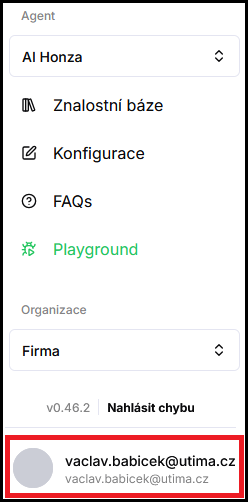
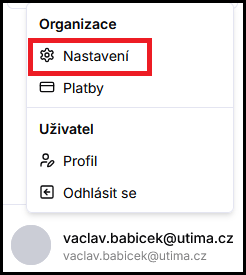
- V levém dolním rohu aplikace klikněte na své jméno a e-mail a vyberte Nastavení.
- V sekci Pracovní doba zapněte dny v týdnu, kdy je operátor k dispozici.
- U jednotlivých dnů nastavte hodiny a klikněte na Uložit.
Podrobnosti o ostatních nastaveních organizace najdete ve Správa organizace.
2. Jak převzít konverzaci
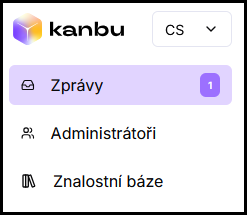
- V levém menu klikněte na Zprávy.
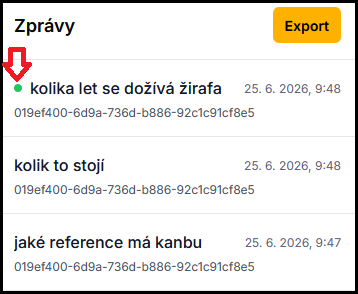
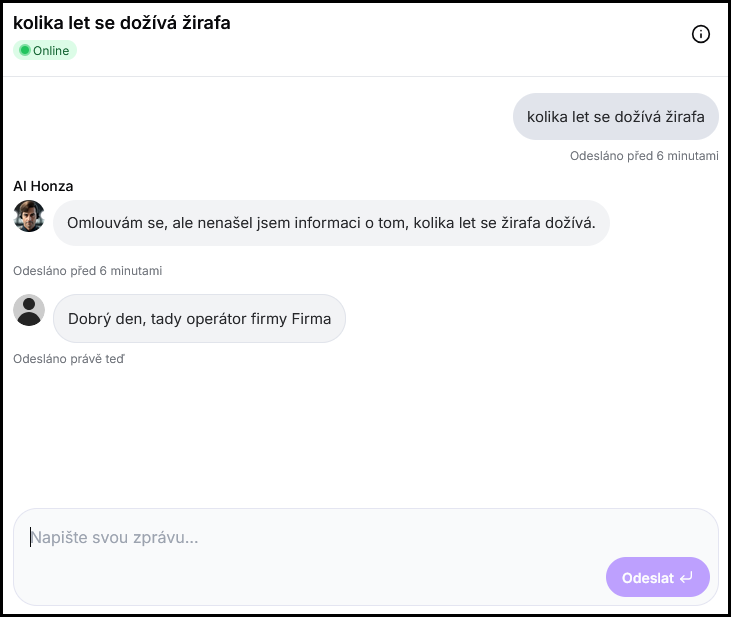
- Vyhledejte vlákno označené zelenou tečkou Online — uživatel má chat právě otevřený.
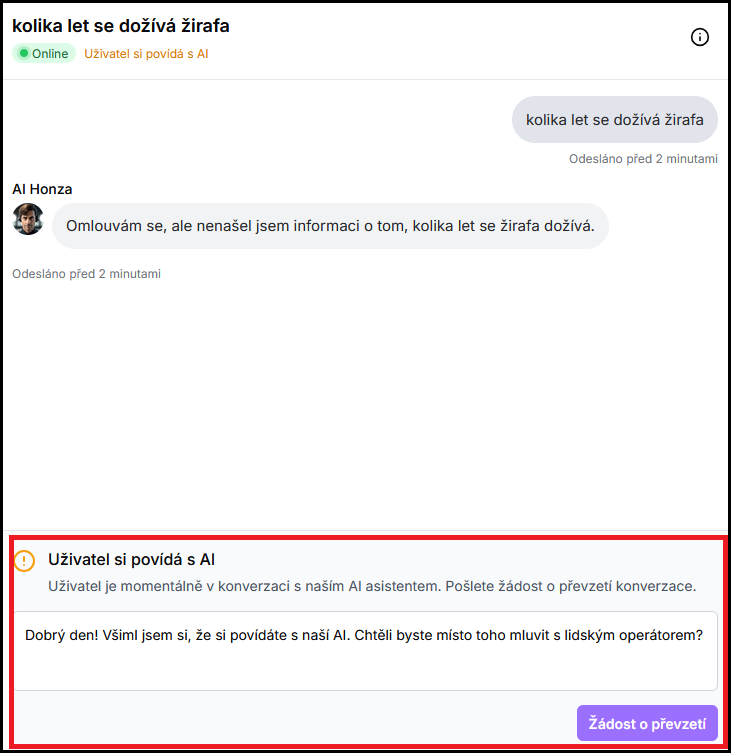
- Ve spodní části vlákna uvidíte textové pole s předvyplněnou zprávou o převzetí. Text můžete upravit.
- Klikněte na Žádost o převzetí — uživateli se v chatbotu zobrazí zpráva s tlačítky Přijmout a Odmítnout.
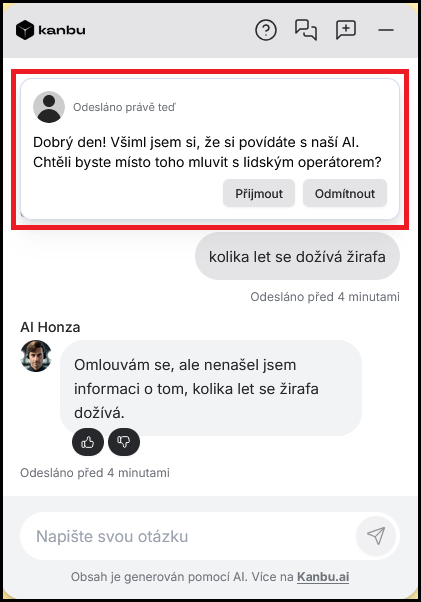
- Pokud uživatel žádost přijme, AI se vypne a vy píšete jako lidský operátor.
- Pokud uživatel žádost odmítne, žádost se zruší a v případě potřeby ji můžete odeslat znovu.
3. Co uvidí uživatel v okně chatbota
- Po odeslání žádosti z administrace se uživateli v chatu zobrazí zpráva s tlačítky Přijmout a Odmítnout. Dokud nepotvrdí, zůstává v konverzaci s AI.
-
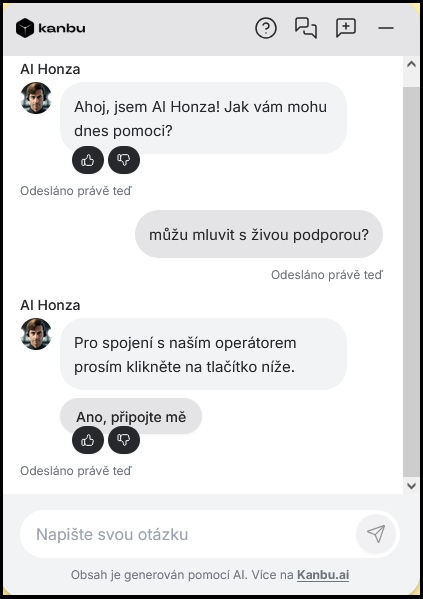
Pokud uživatel sám požádá o spojení tlačítkem Ano, připojte mě (jen v pracovní době), AI se vypne a v záhlaví chatu se zobrazí Čekání na operátora s běžícím časovačem a poznámkou Obvykle odpovídá do 2 minut. Stále může kliknout na Přepnout na AI.
-
Pokud uživatel přijme vaši žádost o převzetí mimo pracovní dobu, uvidí stejné čekání — s poznámkou Mimo pracovní dobu — operátor se nemusí připojit ihned.
-
Po první zprávě od administrátora se text v záhlaví změní na Hovoříte s lidským operátorem. AI je po dobu live chatu vypnutá.
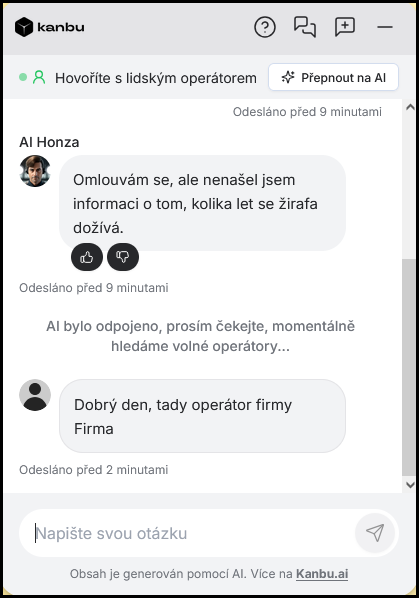
- Uživatel může kdykoli kliknout na Přepnout na AI a vrátit se ke konverzaci s asistentem.

- Převzetí může začít i bez vaší žádosti z administrace — stačí, že uživatel v chatu v pracovní době potvrdí spojení tlačítkem Ano, připojte mě.
4. Upozornění na nové zprávy a žádost o operátora
Odznáček ve Zprávách
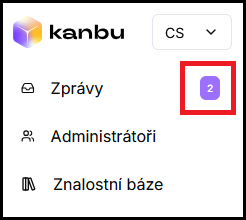
Na nové zprávy upozorňuje odznáček s číslem u položky Zprávy v levém menu. Ve výchozím nastavení se zobrazuje pro zprávy z live chatu i pro AI zprávy.
E-mail při žádosti uživatele o operátora
Když uživatel v chatu potvrdí spojení s člověkem (např. Ano, připojte mě), Kanbu odešle e-mail s náhledem konverzace a odkazem přímo do vlákna ve Zprávách.
- E-mail dostanou aktivní operátoři. Pokud žádný není nastavený, dostanou ho administrátoři organizace.
- E-mail se neposílá, když převzetí iniciujete vy z administrace (už jste ve Zprávách).
- Odkaz v e-mailu otevře konkrétní vlákno. Pokud nejste přihlášení, po přihlášení se vrátíte na stejnou adresu.
Jak vypnout notifikace
- Zakázat oznámení AI v inboxu — skryje odznáčky u AI vláken; e-maily o předání operátorovi a live-chat upozornění zůstanou.
- Zakázat všechna oznámení v inboxu — vypne odznáčky i e-maily o předání operátorovi.
Časté otázky
-
Musím mít nastaveného operátora, aby live chat fungoval?
Ne. Live chat funguje nezávisle na nastavení aktivního operátora — kteroukoli konverzaci může převzít administrátor přímo v menu Zprávy. Aktivní operátor řeší něco jiného: statický kontakt, který chatbot nabídne, když nezná odpověď (viz Odkázání na operátora), a také to, kdo dostane e-mail o žádosti o předání.
-
Proč uživatel mimo pracovní dobu nevidí Ano, připojte mě?
Živé spojení z chatu je jen v pracovní době, ať uživatel nečeká na člověka, který teď není k dispozici. Kontaktní údaje a vysvětlení od agenta zůstanou. Mimo pracovní dobu může live chat začít jen po Přijmout u vaší žádosti o převzetí ze Zpráv — pak uvidí poznámku, že odpověď nemusí přijít ihned. Podrobnosti v Odkázání na operátora.
-
Nedostal jsem e-mail o žádosti o operátora. Co zkontrolovat?
Ověřte, že v nastavení organizace není zapnuté Zakázat všechna oznámení v inboxu. E-mail chodí aktivním operátorům (nebo administrátorům, pokud operátor není). E-mail se neposílá u převzetí, které jste sami spustili z administrace.
-
Jak uživatel ukončí live chat a vrátí se k AI?
Kdykoli kliknutím na Přepnout na AI v záhlaví chatu.
-
Co se stane, když uživatel přejde offline během live chatu?
Vlákno zůstane v historii, ale další odpovědi už nebudou doručeny v reálném čase. Pokud je uživatel offline, můžete do vlákna psát bez omezení, ale uvidí zprávy až po návratu.
-
Vidím u vlákna tečku Online, ale žádost o převzetí nevidím. Proč?
Textové pole se žádostí se zobrazuje jen u vláken, kde je uživatel aktivně online. Zkuste vlákno obnovit.